Create Jira tickets from events and threats.
Managing tickets in Jira via the Keep Aware Jira Service Management Integration
Requirements
- Access to the Keep Aware Console: Ensure you have valid login credentials and are logged in to the console.
- Permissions to configure Email Channels to your Jira Environment: Confirm that you have the necessary permissions to add/alter Email Channels in your Jira environment.
Setup an Email Channels in Jira
First you will either need to setup an Email Channel in Jira or you can use one you have already created.
For information regarding setting up Email Channel in Jira refer to their documentation below.
Setting up Jira Service Management in Keep Aware
To get started, navigate to the Integrations Page and select the Jira Service Management integration. This will open a modal where you can select Create New Integration and begin configuring the integration.
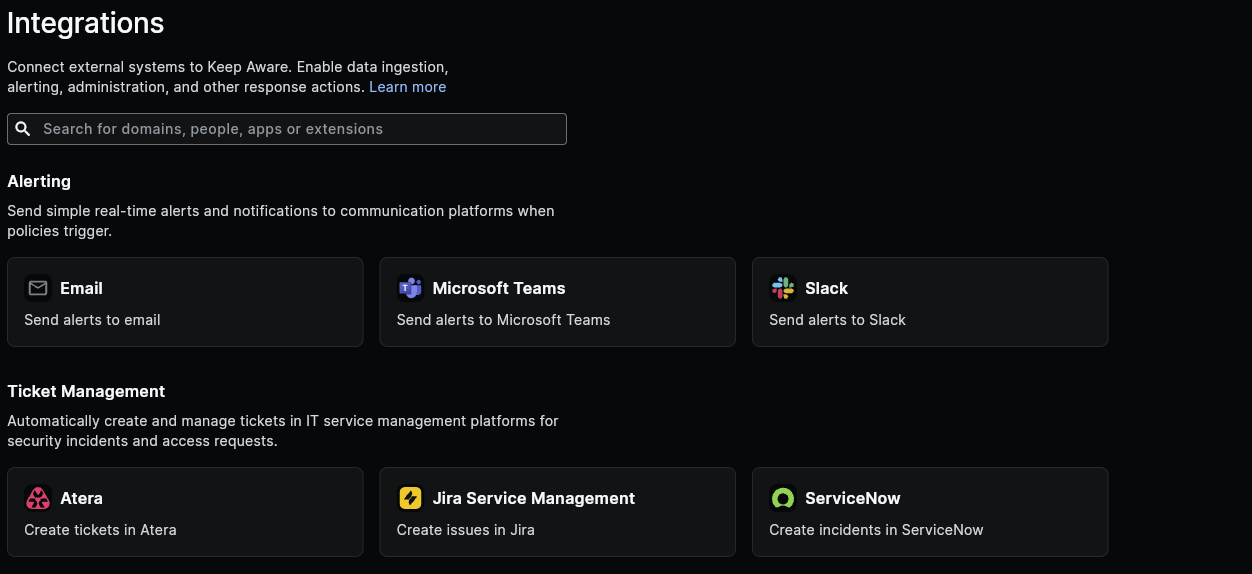 Image: Integrations Page
Here we will configure each of the fields below:
- Identifier: A unique name for your Jira Integration.
- Email Request Inbox: This is where your will enter the email address associated with the email channel created in the previous step.
- Subject: This is the subject of the email that will be sent to the email channel.
- Body: This is the Body of the email that will be sent to the email channel. See below for information on customizing the event body.
After you save the integration, that will complete the basic setup for getting Jira connected to Keep Aware.
Continue below for how to customize the body that is sent to Jira.
Customize the Ticket created in Jira
All payloads sent to Jira utilize wildcards and will be populated with values gathered from the Event or Threat that triggered this integration on a Policy.
Here is an example body that utilizes wildcards. All values wrapped in double-curly brackets will be replaced with their corresponding value on the Event.
Name={{policy.label}}, Description=A policy was triggered by an employee, Severity=High
Further details on all of the wildcard fields that may be used in the Body are available in our Searching documentation under Event and Threat Fields.
Start Generating Tickets in Jira with Policies
To learn how to add integrations to policies, visit Adding Integrations to Policies.
To forward user access requests to a ticketing or alerting integration, see Create an exception workflow.
Frequently Asked Questions
| Question | Answer |
|---|---|
| How can I find out what Event and Threat fields can be used in the body payload sent to Jira? | All available Threat and Even fields are described and documented in the Event and Threat Fields Documentation |
| Where can I find more information about setting up email channels? | More detail on Jira Email Channels can be found on their documentation site Here |