Lists
What are lists?
Lists categorize domains, extensions, and other items for use in policies as allow lists or block lists. Lists may be managed by Keep Aware or by an organization. They also enrich events and reports by tagging related activity.
Lists and categories
There are two types of lists in Keep Aware:
-
User-managed lists
Created and maintained within the console. These contain items such as domains, URLs, extensions, or file hashes. They can be referenced in event searches and policies. -
Keep Aware–managed lists (categories)
Maintained by Keep Aware. These include both itemized lists (like user-managed lists) and dynamic content categories that classify applications, domains, and behaviors (for example, “AI Tools” or “Web-based Email”).
For simplicity, Keep Aware–managed lists are referred to in the console as categories.
List item types
A list can contain one or more of the following item types:
- Domains – domains, hostnames, or FQDNs for matching
- Extensions – Chrome or Edge extension IDs
- URLs – full path URLs
- File hashes – SHA-256 hashes for uploaded or downloaded files
How lists are used
Lists and categories are applied in several areas of the console:
-
Policies
The primary use case for lists. Events containing an entity on a list or category can be evaluated in detection patterns and policies. Examples:- Apply a policy only to specific websites.
- Suppress alerts for approved extensions.
- Block downloads of files with certain hashes.
-
Applications & extensions
On application or extension detail pages, lists and categories appear as tags. These tags support filtering and searching by category (such as “AI Tools”). -
Event searches & threat hunting
Events with matching items are tagged withlistsorcategoryproperties in Advanced Search. In tables, these appear in the Lists and Category columns, which can be enabled in the column selector.
Creating a list
Lists can be created and managed on the Lists page in the console. To create a new list:
- Select the primary action in the top-right of the console, Create list.
- Enter the required details:
- Name – the list’s title
- Description – details about the list’s purpose
- Label – the short identifier shown on event tags
- Items – domains, URLs, extensions, or file hashes to include in the list
Save the list to make it available for use in policies and searches. Lists are evaluated for events populated after the list was created or updated.
Searching lists and categories
Lists and categories can be searched in two ways:
-
Add filter UI
Use the filter builder in the Events page.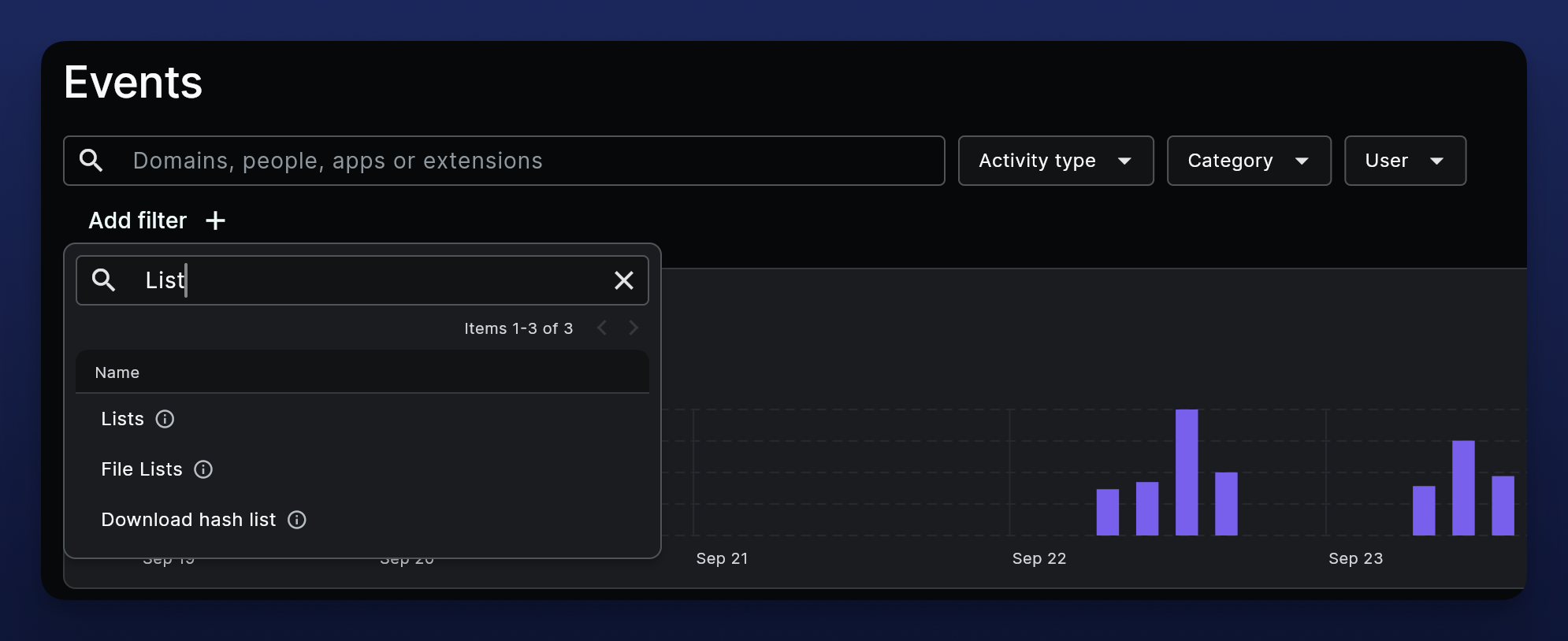
Image: Events search bar -
Advanced search
Refer directly to lists or categories:lists:"my_blocklist"Or
category:"ai_tools"
Frequently Asked Questions
| Question | Answer |
|---|---|
| Is there a limit to the number of items associated with a list? | There is no technical limit to lists. For lists with over 500 items, it's recommended to use the Lists API to batch update items of 25-50 per request. |
| Can lists be used for threat feeds? | Yes. Keep Aware uses lists infrastructure internally for this purpose. The Lists API can be used to individually or bulk add/remove items from lists. |