Setting up Splunk SOAR
Use the Keep Aware Splunk SOAR App for adding and removing members from a Keep Aware domain list.
Requirements
- Access to the Keep Aware Console: Ensure you have valid login credentials and are logged in to the console.
- Valid Keep Aware Client ID and Client Secret API keys: Confirm that you have a client id / client secret pair with permissions to get and modify lists
- Your Keep Aware Tenant ID: You will need to the tenant ID associated with your Keep Aware environment
- Keep Aware list ID: You will need the ID of the Domain List that you have configured to be interacted with by Splunk SOAR
Getting Started
Installing the Keep Aware App into Splunk SOAR
The first step in setting up Keep Aware in a Splunk SOAR environment is to install the Keep Aware App for Splunk SOAR. Do do this, download the app tarball from the download button below.
📁 Download Keep Aware Splunk SOAR App:
Next, from your Splunk SOAR web console, click the view selection dropdown and select Apps.
 Image: SOAR Apps Page
From this page, select Install App and upload the Keep_Aware_Connector.tgz file by following the on screen prompts.
Configuring the Keep Aware App in Splunk SOAR
At this point you will see the Keep Aware Connector App in the Unconfigured Apps tab. To configure it we will select the Configure New Asset button and we will be brought to the Asset Configuration Page as shown below.
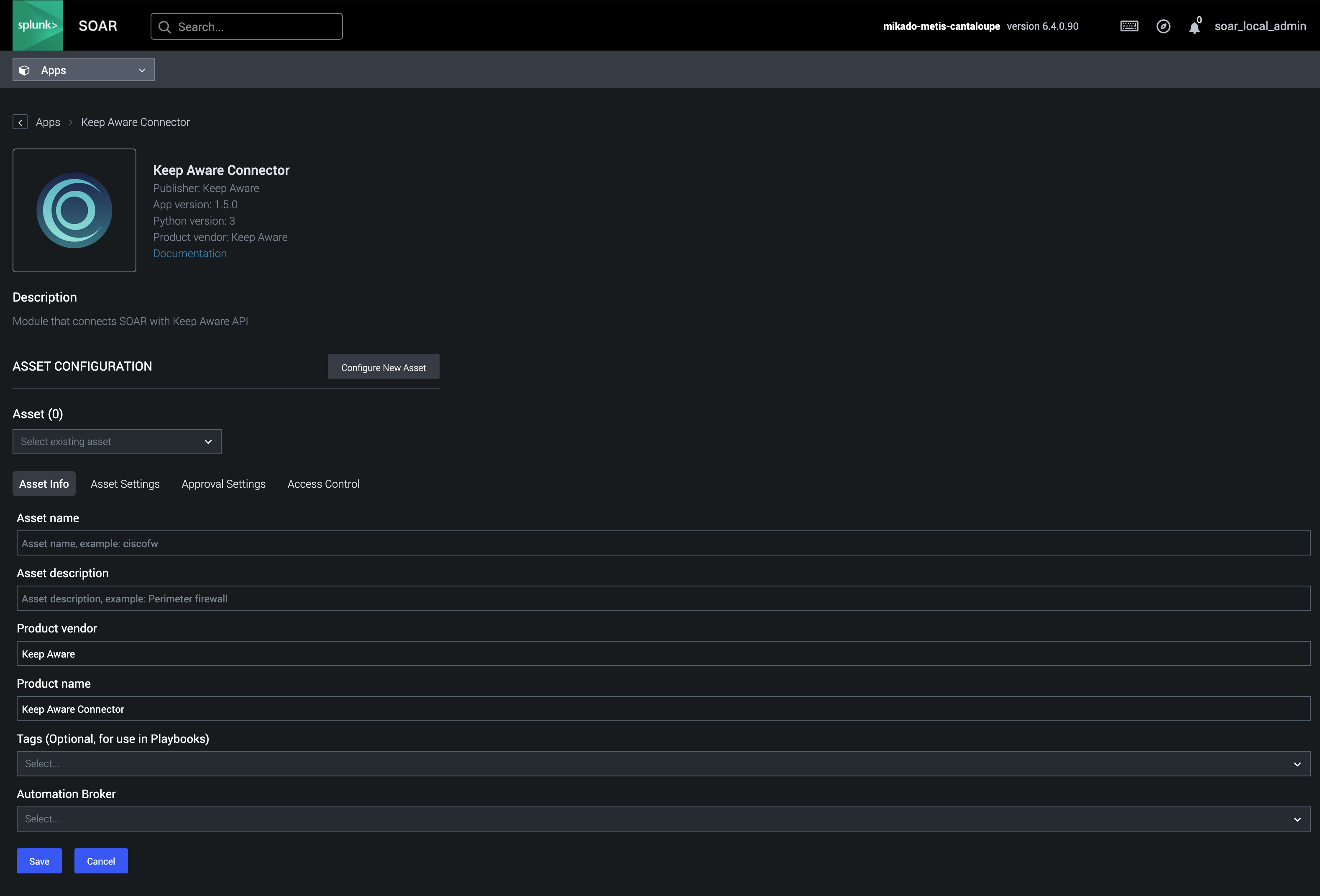 Image: Keep Aware Connector asset configuration page
From this page you can fill out the various fields and tag values to help keep your app assets organized. To finish the configuration you will need to go to the Asset Settings tab and fill out the four required fields:
- List ID: The ID of the Keep Aware List that you want to be able to add and remove domains from.
- Tenant ID: The tenant ID associated with your Keep Aware environment.
- Client ID: The client ID portion of the API key mentioned in the requirement section of this document.
- Client Secret: The client Secret portion of the API key mentioned in the requirement section of this document.
The final result should look something like this:
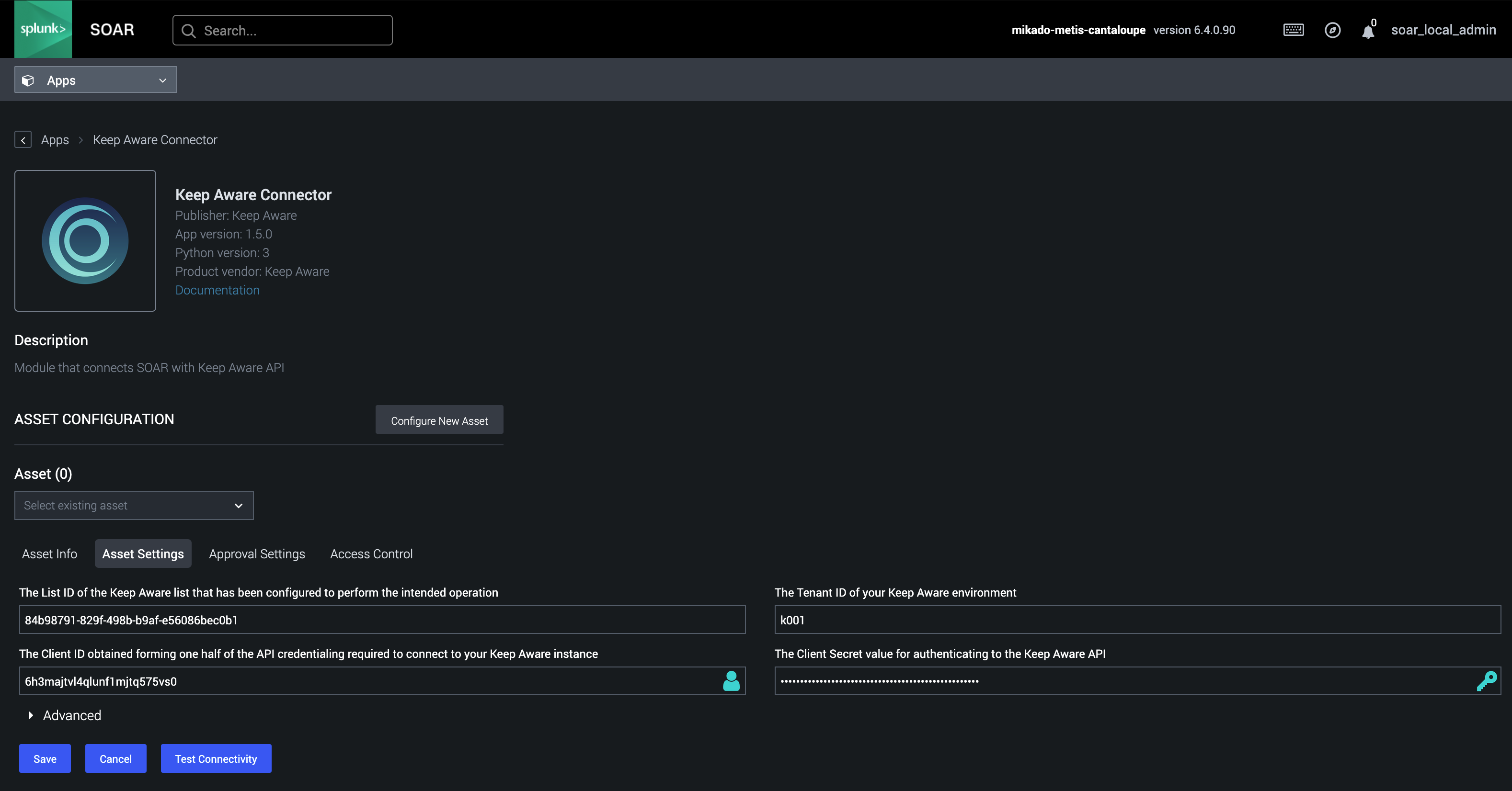 Image: Keep Aware Connector asset settings tab
You can then click the Test Connectivity button to confirm your settings are configured correctly. If all is well, click save to persist your changes.
One possible workflow (assuming you have configured multiple different lists that will react differently to a member being added) is to create multiple assets based on the Keep Aware Connector App each with the intended list ID set to correspond to the list you wish to alter with that workflow.
For example, you could have an allow_safe_domains_list or perhaps a block_malicious_extensions_list configured in your Keep Aware environment and you could create a SOAR asset for each so they may be used differently in different playbooks without having to keep track of different list IDs.
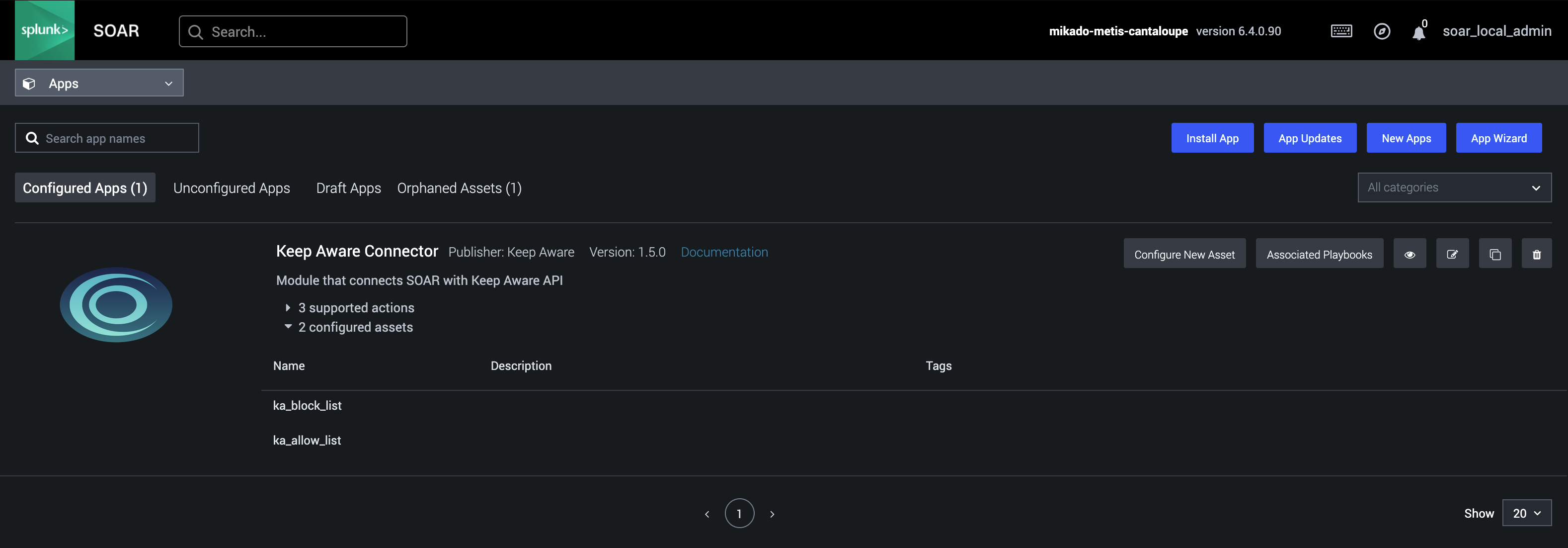 Image: Keep Aware Connector Example Multi-asset configuration
Using the Keep Aware Connector App in a Splunk SOAR playbooks
How to Create a Splunk SOAR Playbook
Playbooks
Once you have navigated to the Playbooks page in your Splunk SOAR instance, either open an existing Playbook or created a new one.
To work with the Keep Aware App, drag an Action block to your playbook workspace from the Action bar on the left side of the page. When given the option select the Keep Aware App and pick your preferred action. Upon action selection you will be given the option to select one of the assets that you have configured prior.
Since certain lists are less stringent about their data validation requirements it is possible to misconfigure a playbook action to send the wrong data to the wrong list. For example, sending a domain to a URL list will not throw an error in the API. The API will let you do that due to the fact that URLs will contain Domains. For this reason it is very important to ensure you have pointed the selected action at the correct asset.
Once you have selected the asset you can then use the action in your playbook. Below is an example file containing a playbook that takes in a Splunk Artifact, parses out the domain, and then feeds it to a add domain to domain list action.
📁 Download Keep Aware Splunk SOAR Example Playbook:
Supported Actions
- Test Connection
- Add/Remove Extension from list
- Add/Remove URL from list
- Add/Remove file hash from list
- Add/Remove domain from list
This action is used to confirm that the saved asset contains a valid Client ID and Client Secret, that it can connect to the Keep Aware API, and that the tokens are authorized to interact with the list endpoints.
When creating a new Asset in the asset creation window you will see a test connection button, if you press this button before clicking save, your SOAR instance will not store the ID and secret values before invoking the function and will fail the test. Make sure to press save first.
add_extension_to_list: When this action is placed in your SOAR playbook and connected to an asset (configured to point at a Keep Aware list of typeExtension) you can provide anextension IDand anextension nameeach as a string and when invoked it will add the extension to that list.remove_extension_from_list: When this action is placed in your SOAR playbook and connected to an asset (configured to point at a Keep Aware list of typeExtension) you can provide anextension IDalone as a string and when invoked it will remove the extension from that list.
add_url_to_listremove_url_from_list
Both of these actions accept a URL as a string value and when connected to an asset (configured to point at a Keep Aware list of type URL) it will add or remove that URL from that list respective of which action has been used.
add_file_hash_to_listremove_file_hash_from_list
Both of these actions accept a SHA256 hash as a string value and when connected to an asset (configured to point at a Keep Aware list of type File Hashes) it will add or remove that hash from that list respective of which action has been used.
add_domain_to_listremove_domain_from_list
Both of these actions accept a domain as a string value and when connected to an asset (configured to point at a Keep Aware list of type Domain) it will add or remove that domain from that list respective of which action has been used.
Frequently Asked Questions
| Question | Answer |
|---|---|
| Is there an example config for a playbook using the Keep Aware Connector? | Yes, you can download an example playbook that adds a domain to a Keep Aware list here: |
| I created an asset and clicked test connection but the connection failed. How do I fix this? | When creating a new Asset in the asset creation window you will see a test connection button, if you press this button before clicking save, your SOAR instance will not store the ID and secret values before invoking the function and will fail the test. Make sure to press save first. |