Create Freshservice tickets from events and threats.
Managing tickets in Freshservice via the Keep Aware Freshservice Integration
Requirements
- Access to the Keep Aware Console: Ensure you have valid login credentials and are logged in to the console.
- A Freshservice agent with permission to create tickets: The integration authenticates with a Freshservice API key, and the key inherits the permissions of the agent it belongs to. We recommend creating a dedicated integration agent whose role can create tickets, rather than using a personal account.
Get your Freshservice API key
- Log in to your Freshservice account as the agent the integration should act as.
- Click your profile avatar (top right) and select Profile Settings.
- Your API key is displayed on the right side of the page.
Setting up Freshservice in Keep Aware
To get started, navigate to the Integrations Page and select the Freshservice integration. This will open a modal where you can select Create New Integration and begin configuring the integration.
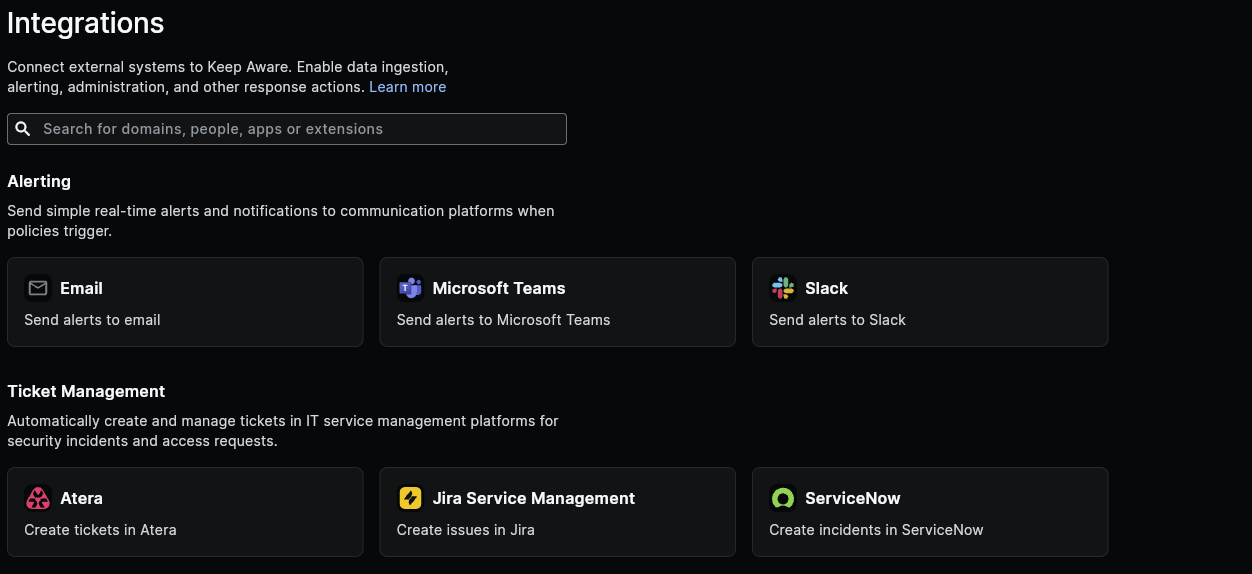 Image: Integrations Page
Here we will configure each of the fields below:
- Name: A unique name for your Freshservice Integration.
- Freshservice domain: Your Freshservice domain (e.g.,
acme.freshservice.com). - API key: The API key from the previous step.
- Fallback requester email: The mailbox used when Keep Aware cannot identify the user's email address — see Requester below.
- Service catalog item ID: Optional. Leave empty to create standard tickets. Set it to place a request against a specific service catalog item instead — see Create service requests instead of tickets below.
- Workspace ID: Optional — see Workspaces below. Leave empty to create tickets in your account's default workspace. (Ignored when a Service catalog item ID is set.)
- Body: This is the JSON body that will be sent to Freshservice. See below for information on customizing the ticket body.
After you save the integration, that will complete the basic setup for getting Freshservice connected to Keep Aware.
Requester
Freshservice requires every ticket and service request to be filed under a requester, and the email field in the payload is how Keep Aware supplies it. Keep Aware works down this list and stops at the first step that produces a usable address:
- The
emailvalue in your Body template, if it resolves to a usable address. - The user associated with the event, when their
user.labelis an email address. - The Fallback requester email configured on the integration.
- Nothing. If none of the above produce an address,
emailis left off the payload entirely and Freshservice rejects the request. The error is surfaced on the integration's status in the console.
Most events resolve to the person who triggered the policy at step 2, so the ticket is attributed to a real user in Freshservice. Some events cannot be attributed — the user may be identified by an internal ID rather than an email address, or the event may have no user at all — and those fall through to the fallback mailbox at step 3.
The same order applies to service catalog requests; nothing about the requester changes between the two modes.
How it plays out
Assuming a Fallback requester email of soc@acme.com:
Body email | Event user.label | Requester sent to Freshservice | Why |
|---|---|---|---|
| not in the body | jane@acme.com | jane@acme.com | Step 2 — the event's user is a real address |
| not in the body | a8f3c1d2-9b44 | soc@acme.com | Step 3 — an internal ID is not an address |
| not in the body | no user on the event | soc@acme.com | Step 3 |
"{{user.label}}" | jane@acme.com | jane@acme.com | Step 1 — the wildcard resolved to an address |
"{{user.label}}" | no user on the event | soc@acme.com | The wildcard rendered null, so step 1 is skipped |
"itsupport@acme.com" | jane@acme.com | itsupport@acme.com | Step 1 — a hardcoded address pins every ticket from this integration |
With no fallback mailbox configured, rows 2, 3 and 5 above send no requester at all and Freshservice returns a validation error.
nullWhen a wildcard has no value on the event, Keep Aware renders it as the literal string null rather than leaving it blank. Keep Aware treats an email of null (or an empty string) as "no requester supplied" and moves on to steps 2 and 3, so "email": "{{user.label}}" is safe to use.
Do not put {{user.name}} in the email field. Unlike {{user.label}}, it always renders something — Unknown user when the event has no identifiable user — so it counts as a usable requester, gets sent as-is, and Freshservice rejects it.
Workspaces
If your Freshservice account uses multiple workspaces (e.g., IT, HR, Facilities), pay attention to the Workspace ID field:
- When it is left empty, Freshservice creates tickets in your account's default workspace — which may not be the workspace your security team works out of.
- Tickets cannot be moved between workspaces after creation, so a misrouted ticket has to be recreated by hand.
- To find a workspace's ID, go to Admin → Workspaces in Freshservice and open the workspace — the numeric ID is in the page URL. (API users can also list them via
GET /api/v2/workspaces.)
One more workspace nuance: each workspace can define its own required ticket fields. If tickets fail to create after you set a Workspace ID, check that workspace's ticket form for required custom fields and add them to the Body template — the Freshservice error message is surfaced on the integration's status in the console.
Customize the Ticket created in Freshservice
All payloads sent to Freshservice utilize wildcards and will be populated with values gathered from the Event or Threat that triggered this integration on a Policy.
Here is the default body. All values wrapped in double-curly brackets will be replaced with their corresponding value on the Event.
{
  "subject": "[Keep Aware] Alert | {{type}}",
  "description": "A security event has been detected by Keep Aware\n\nEvent Type: {{type}}\nUser: {{user.label}}\nLocation/Hostname: {{location}}\nEvent Link: https://console.awarefilter.com/explore/events?query=_id:%22{{id}}%22\n",
  "priority": 2,
  "status": 2
}
A few Freshservice-specific notes on the body:
- You do not need an
emailvalue in the body — the requester is resolved from the event automatically, as described under Requester. The user associated with the event is also captured in thedescriptionvia{{user.label}}. Hardcoding an address in"email"pins every ticket from this integration to it, overriding both the event's user and the fallback mailbox. priorityandstatusare numeric enums: priority1Low,2Medium,3High,4Urgent; status2Open,3Pending,4Resolved,5Closed.- Tickets report their Source as "Portal" by default. Freshservice has no "API" source value. If you want a different source, add
"source": <n>to the body (1Email,2Portal,3Phone,4Chat,5Feedback Widget,6Yammer,7AWS CloudWatch,8Pagerduty,9Walk-up,10Slack).
Commonly used wildcards
Any Event or Threat field can be used as a wildcard. The full list is in Event and Threat Fields. These are the ones most useful in a ticket or service-request body:
| Wildcard | Value |
|---|---|
{{type}} | The event type (e.g. page, download, input). |
{{url}} | The full URL of the event — including path and query. Use this for the blocked/visited link. |
{{location}} | The hostname only, with dots defanged for safe display (e.g. example[.]com). |
{{location_full}} | The hostname only, not defanged (e.g. example.com) — use when the value must be a live host. |
{{domain}} | The root domain of the event location. |
{{user.label}} | The identity of the user associated with the event — usually their email address when the user is identified. Use this wherever you need the user's email. |
{{user.name}} | A friendly display name derived from {{user.label}} when it is an email (e.g. jane.doe@acme.com → Jane Doe). Falls back to Unknown user when the user is not identified. |
{{category}} | The event category. |
{{id}} | The event's unique id (used to build a console link in the default body). |
{{@timestampISO}} | The event time as an ISO 8601 string. |
Create service requests instead of tickets
Some teams route access requests through a Freshservice Service Catalog item rather than a standard ticket. To do this, set the Service catalog item ID field to the numeric ID of your catalog item. Keep Aware then places a request against it:
POST https://<your-domain>/api/v2/service_catalog/items/<id>/place_request
When a Service catalog item ID is set, the body must match the place_request shape, not the ticket shape. A typical body for a website-unblock request looks like this:
{
  "quantity": 1,
  "email": "{{user.label}}",
  "subject": "{{user.name}} requested access to {{url}}",
  "custom_fields": {
    "url": "{{url}}",
    "action": "Unblock"
  }
}
Notes specific to service requests:
quantityis required. Keep Aware defaults it to1if you leave it out or it resolves to nothing.emailis the requester, resolved exactly as it is for tickets — see Requester.custom_fieldsare defined per item inside your own Freshservice tenant, so they cannot be pre-filled — add the fields your catalog item expects.- Ticket-only fields are removed.
workspace_idis a ticket field that Freshservice rejects on a service request, so Keep Aware strips it from the payload — including when your body template still carries one over from ticket mode. - The ID must be numeric. If the Service catalog item ID field contains anything else, Keep Aware fails the delivery with an explanatory error on the integration status rather than quietly creating a standard ticket.
A place_request creates the request but cannot set a group_id, category, or description — Freshservice rejects those fields on creation, and they can only be added afterward with a separate update call that Keep Aware does not make. If you need requests routed to a specific team, create a routing rule in Freshservice for your Keep Aware catalog items.
Start Generating Tickets in Freshservice with Policies
To learn how to add integrations to policies, visit Adding Integrations to Policies.
To forward user access requests to a ticketing or alerting integration, see Create an exception workflow.
Frequently Asked Questions
| Question | Answer |
|---|---|
| How can I find out what Event and Threat fields can be used in the body payload sent to Freshservice? | All available Threat and Event fields are described and documented in the Event and Threat Fields Documentation |
| Why did my ticket land in the wrong workspace? | The Workspace ID field was empty, so Freshservice used your account's default workspace. Set the Workspace ID on the integration — tickets cannot be moved between workspaces after creation. |
| What happens if we send a burst of events? | Freshservice enforces per-minute API rate limits by plan. Keep Aware automatically retries rate-limited and transient failures with backoff; anything that still fails is surfaced on the integration's status in the console. |
| Why do tickets show "Portal" as their source? | Freshservice has no "API" source value and defaults API-created tickets to Portal. Add a "source" value to the body template to override it. |
| Why does our fallback mailbox get a "request received" email for some tickets? | Freshservice notifies a ticket's requester when it is created. Tickets that Keep Aware could not attribute to a user are filed under your Fallback requester email, so that mailbox is notified for each one. Attributed tickets notify the user instead. Use a dedicated or no-reply mailbox, or adjust requester notifications in Freshservice (Admin → Email Notifications). |
| Why are some tickets filed under the fallback mailbox instead of the user? | Keep Aware makes the event's user the requester only when it knows their email address. Events where the user is identified by an internal ID, or that have no user at all, fall back to the configured mailbox. The user value is always recorded in the ticket body via {{user.label}}. |