Forwarding Events to Google SecOps SIEM
Requirements
- Access to the Keep Aware Console: Ensure you have valid login credentials and are logged into the console.
- Google SecOps SIEM Service Account JSON: Obtain a service account JSON file from your Google SecOps SIEM administrator. This file contains the credentials necessary to authenticate with the Google SecOps SIEM Ingestion API.
Setting up a Service Account for Log Ingestion
To authenticate with the Google Security Operations Ingestion API, you'll need to provide a Google Cloud service account configured with the appropriate permissions.
- It must be configured to allow the following OAuth scope:
https://www.googleapis.com/auth/malachite-ingestion - A JSON key must be generated for this service account and uploaded during integration setup.
- You must also provide the Customer ID associated with your Google SecOps SIEM instance.
Setting Up Google SecOps SIEM in Keep Aware
To begin, navigate to the Integrations Page and select the Google SecOps SIEM integration. This will open a modal where you can select Create New Integration and start configuring the integration.
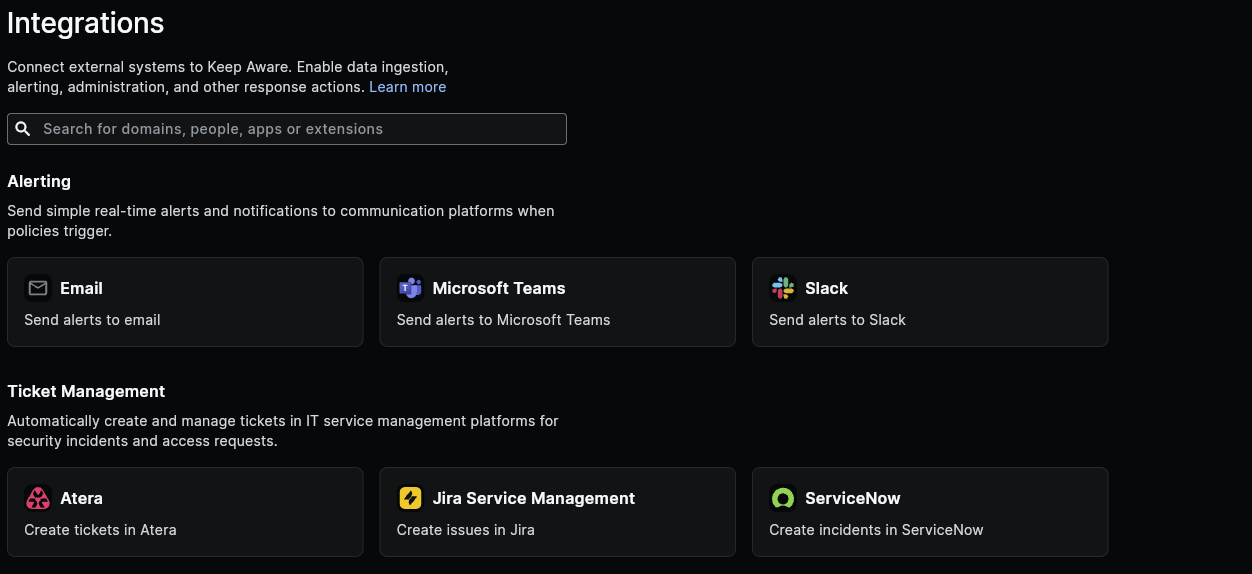 Image: Integrations Page
Here, configure each of the fields below:
- Identifier: A unique name for your Google SecOps SIEM Integration.
- Customer ID: Enter the unique Customer ID associated with your Google SecOps SIEM instance. This identifier ensures that the ingested data is correctly attributed to your organization within Google SecOps SIEM.
- Ingestion Endpoint: Specify the ingestion API endpoint provided by Google. (Ex.
malachiteingestion-pa.googleapis.com) - Service Account JSON: Upload the service account JSON file provided by your Google SecOps SIEM administrator. This file is used to authenticate with the Google SecOps SIEM Ingestion API.
- Body: This is the JSON payload that will be sent to Google SecOps SIEM. Ensure that this payload is formatted according to the Unified Data Model (UDM) schema required by Google SecOps SIEM.
After saving the integration, the basic setup for connecting Google SecOps SIEM to Keep Aware is complete.
Continue below to learn how to customize the body sent to Google SecOps SIEM and how to connect this integration to Policies.
Full Event Forwarding Setup (Unstructured Logs)
When you enable Send entire event payload, Keep Aware switches from the UDM ingestion endpoint to the unstructured log ingestion endpoint. The full raw event is sent as JSON text under the log type KEEPAWARE.
Required: Create a Custom Log Type in Chronicle
Before events can be ingested, you must register the KEEPAWARE log type in your Google SecOps instance:
- Navigate to SIEM Settings > Available Log Types
- Click Request a Log Type > Create a custom log type
- Enter
KEEPAWAREas the log type name - Add a description (e.g., "Keep Aware event logs")
- Paste 5–10 sample log entries in raw JSON format
- Click Submit — the log type will be available in approximately 10 minutes
The Google SecOps Ingestion API rejects requests with unregistered log types. You must complete this step before enabling Send Full Event.
Recommended: Enable Auto Extraction
Once logs are flowing, enable Auto Extraction for the KEEPAWARE log type to get structured search without writing a custom parser:
- Navigate to SIEM Settings > Parsers
- Find the
KEEPAWARElog type - Enable Auto Extraction and select the fields you want to extract
With Auto Extraction enabled, extracted fields are available in UDM Search, YARA-L detection rules, and Native Dashboards.
Frequently Asked Questions
| Question | Answer |
|---|---|
| How can I find out what Event and Threat fields can be forwarded to Google SecOps SIEM? | All available Threat and Even fields are described and documented in the Event and Threat Fields Documentation. |