Collecting Evidence with Amazon S3
Requirements
- Access to the Keep Aware Console: Ensure valid login credentials are available and logged in to the console.
- Amazon S3 Bucket: A general-purpose S3 bucket to store evidence artifacts.
- IAM Permissions: The Access Key ID must have
s3:ListBucketpermission on the bucket, ands3:PutObjectands3:GetObjectpermissions on the bucket objects.
Setting up the S3 bucket
To get started, navigate to the Integrations Page and select the Evidence Collection integration. This will open a modal. Then select Create New Integration and begin configuring the integration.
 Image: Integrations Page
Configuring the integration
Here we will configure each of the fields below:
- Label: A unique name for the integration
- Bucket: The name of the S3 bucket where evidence will be stored
- Region: The AWS region where the S3 bucket is located
- Access Key ID: AWS credential for programmatic access to the S3 bucket
- Secret Access Key: Secret credential paired with the Access Key ID for authentication
- Readonly: The Readonly field prevents Keep Aware from accessing evidence and instead redirects to the bucket console
- Capture Screenshot: Whether page screenshot artifacts will be captured and saved in the bucket
- Capture Inputs: Whether input artifacts will be captured and saved in the bucket
- Capture DOM: Whether the pages html DOM will be captured and saved in the bucket
Collecting evidence in a policy
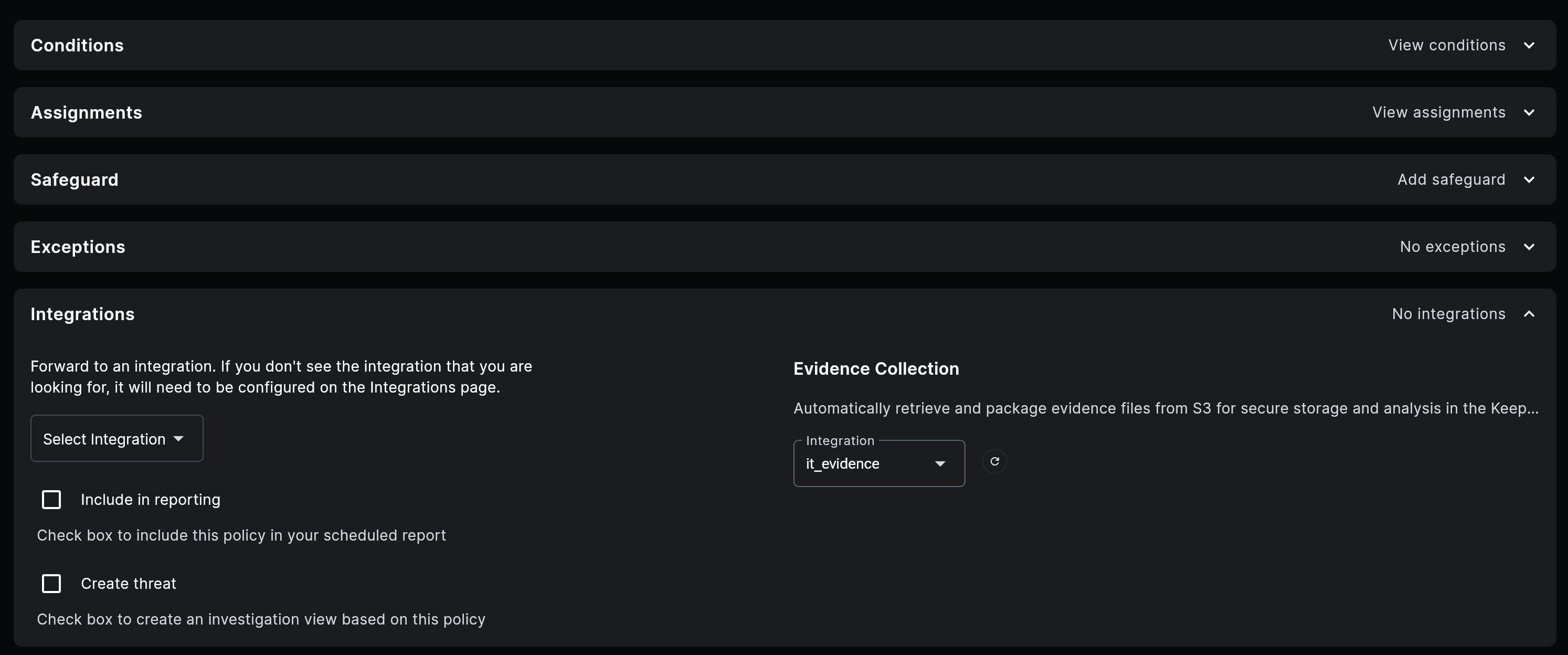
To enable evidence collection navigate to the Integrations in the policy editor and select which integration should be used under Evidence Collection.
Results
When evidence is collected from an event, artifacts are stored in S3 with the following structure:
bucket-name/
└── {browser_id}/
    └── {event_id}/
        ├── input.txt
        └── screenshot.png
Each event captured is organized by the unique ID for the browser, then by the event ID. Evidence artifacts such as input data and screenshots are stored within the event folder.