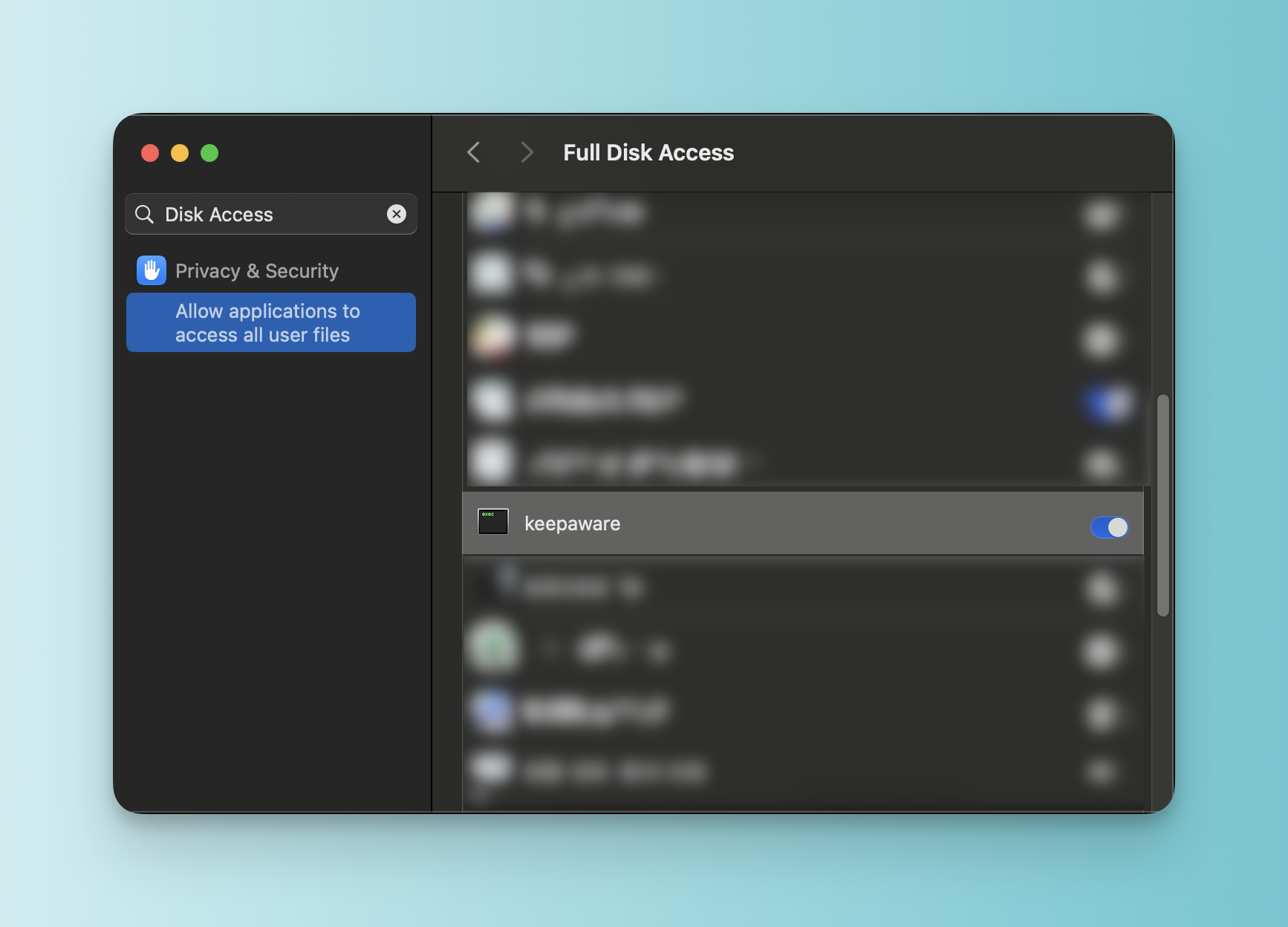
Grant app permissions
Apple requires macOS applications to request permission before accessing sensitive system resources such as disk access. The Keep Aware client uses this access to enrich threat detections—for example, by computing file hashes on downloaded files.
When deploying Keep Aware through an MDM (Jamf Pro, Kandji, Mosyle, SimpleMDM, etc.), you must either:
- Deploy through an MDM that support enabling permissions automatically,
- Deploy a preconfigured PPPC profile that grants the required permissions automatically, or
- Manually grant these permissions on each device.
Using the preconfigured profile
- Download the custom profile provided below:
- Follow your MDM’s instructions to upload and install the custom profile.
Creating your own PPPC policy
If you prefer to configure Privacy Preferences Policy Control settings directly in your MDM, grant the required privileges for the Keep Aware agent:
- Policy path:
/usr/local/keepaware/keepaware - Required privilege:
SystemPolicyAllFiles. If your environment restricts browser downloads to specific folders, you may instead use:DownloadsFolder,DesktopFolder, orDocumentsFolder. - Code requirement:
identifier keepaware and anchor apple generic and certificate 1[field.1.2.840.113635.100.6.2.6] /* exists */ and certificate leaf[field.1.2.840.113635.100.6.1.13] /* exists */ and certificate leaf[subject.OU] = "6ALP76LCQK"
Granting permissions on unmanaged devices
To grant permissions for a device that is not enrolled in MDM (macOS Sonoma): If the device is not enrolled in an MDM, permissions can be granted manually:
- Open the Apple menu.
- Go to System Settings... > Privacy & Security.
- Select Full Disk Access.
- Find keepaware and toggle it on. macOS may prompt for an administrator password.