Set up Microsoft Entra ID SSO to sign into the Keep Aware console.
Setting up Entra ID SSO
Requirements
- Access to the Keep Aware Console: Ensure you have valid login credentials and are logged in to the console.
- Administrator access to Microsoft Entra ID: Confirm that you have the necessary permissions to configure Enterprise Applications in the Azure portal.
Getting Started
Entra ID Application Setup
- In the Azure portal, go to Microsoft Entra ID > Manage > Enterprise Applications.
- Click New application > Create your own application.
- Enter
Keep Aware Consoleas the application name. - Select Integrate any other application you don't find in the gallery (Non-gallery) and click Create.
Configure SAML Single Sign-On
- In your new application, go to Single sign-on from the left menu.
- Select SAML as the single sign-on method.
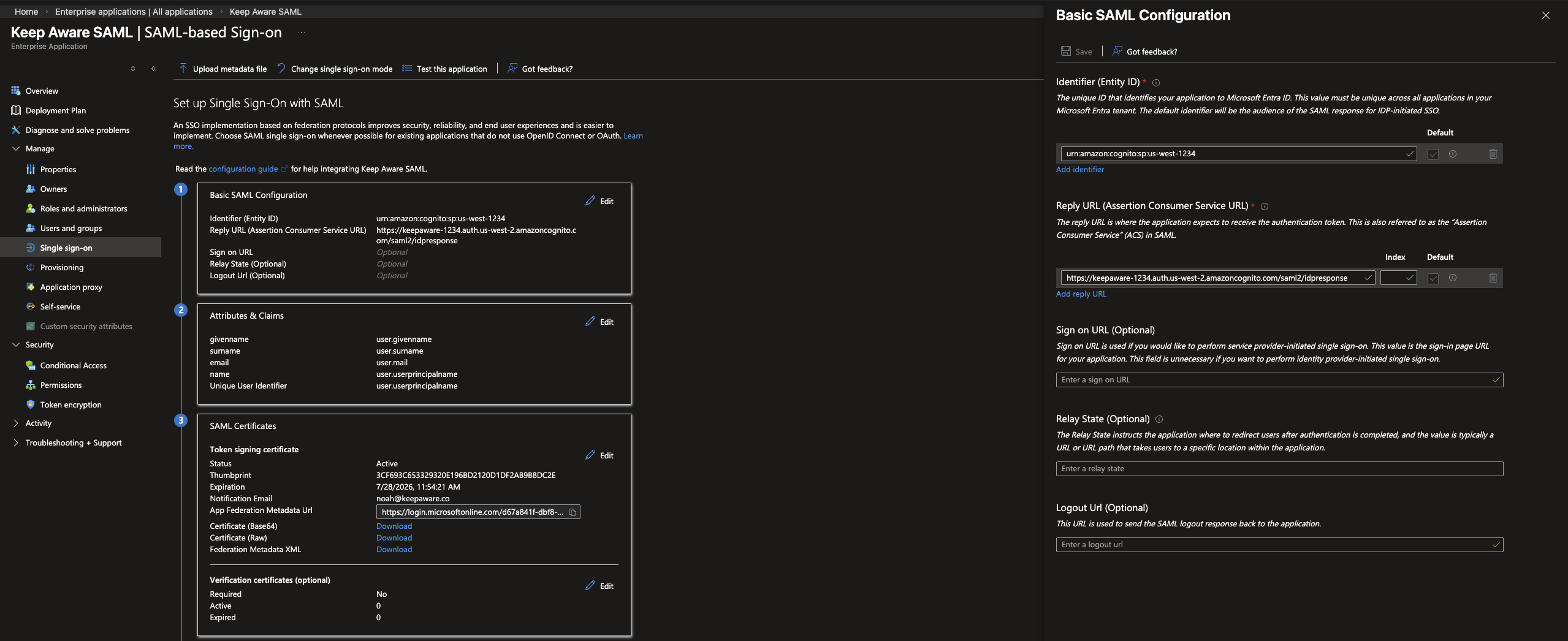
Basic SAML Configuration
Click Edit on the Basic SAML Configuration section and configure the following:
Click Save to apply the configuration.
Attributes & Claims
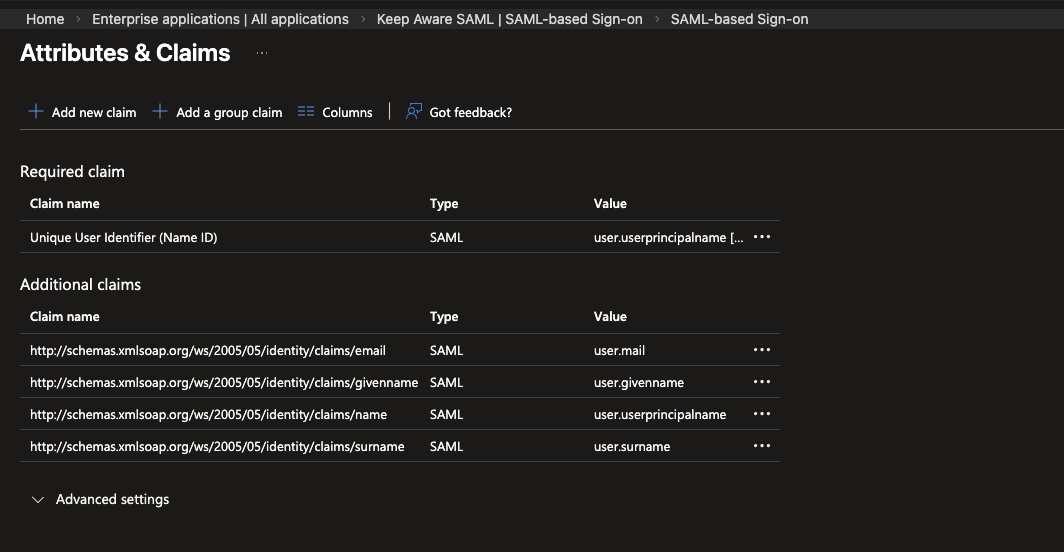
- Click Edit on the Attributes & Claims section.
- Verify that the Unique User Identifier (Name ID) is set to
user.userprincipalnameoruser.mail(email address format). - Optionally, add a claim for email mapped to
user.mailif you would like to specify a custom email attribute mapping.
SAML Signing Certificate
- In the SAML Signing Certificate section, download the Certificate (Base64).
- Open the downloaded certificate file in a text editor. You will need the certificate body (excluding the
----BEGIN CERTIFICATE----and----END CERTIFICATE----lines) when configuring the Keep Aware Console.
Assign Users and Groups
- Go to Users and groups from the left menu of your Enterprise Application.
- Click Add user/group and assign the users or groups that should have access to the Keep Aware Console.
Setting up Entra ID SSO in the Keep Aware Console
- In the Keep Aware Console, click on the Integrations tab.
- Select SAML SSO and click Create New Integration.
Configure the following fields:
- SAML 2.0 Endpoint (Login URL): Your Login URL from the Entra ID application's Set up section.
- Issuer: Your Microsoft Entra Identifier from the Entra ID application's Set up section.
- Public Certificate: The Certificate (Base64) you downloaded earlier. Only the base64 encoded certificate body is needed (exclude the
----BEGIN CERTIFICATE...----END CERTIFICATE...lines). - Email Attribute Mapping Key (Optional): If you configured a custom email claim in Entra ID, specify the name of that claim here.
Click Save to complete the setup.
Test the Integration
- Logout of the Keep Aware Console.
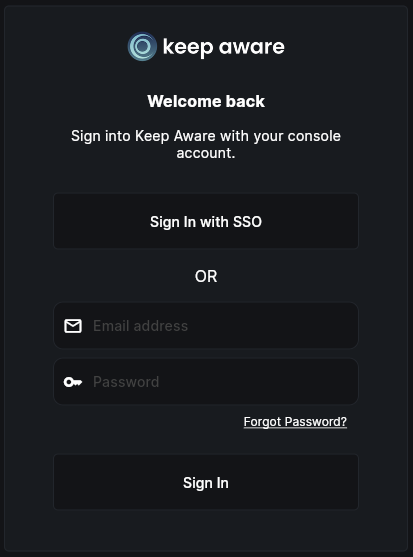
- Login with SSO: Enter your email on the login page. You should now see and select the Sign-in with SSO option. Or if you configured a Relay State you can login from the Microsoft My Apps portal via IdP-initiated SAML sign-in.
Support
Your Keep Aware account team can assist with the deployment of the Entra ID integration. Please reach out with any questions or schedule a call to walk through the deployment process together.