Setting up Email Alerts
Send alerts to an email for specific Keep Aware Policies. Configure your email inbox, subject, and customize the body that will be sent to your inboxes. By configuring the Email integration, you can receive real-time alerts when specific Policies are triggered.
Requirements
- Access to the Keep Aware Console: Ensure you have valid login credentials and are logged in to the console.
- Valid email addresses: Confirm that you have the email addresses of the intended recipients for the alerts.
Setting up Email Alerts in Keep Aware
To get started, navigate to the Integrations Page and select the Email integration under Alerting. This will open a modal where you can select Create New Integration and begin configuring the integration.
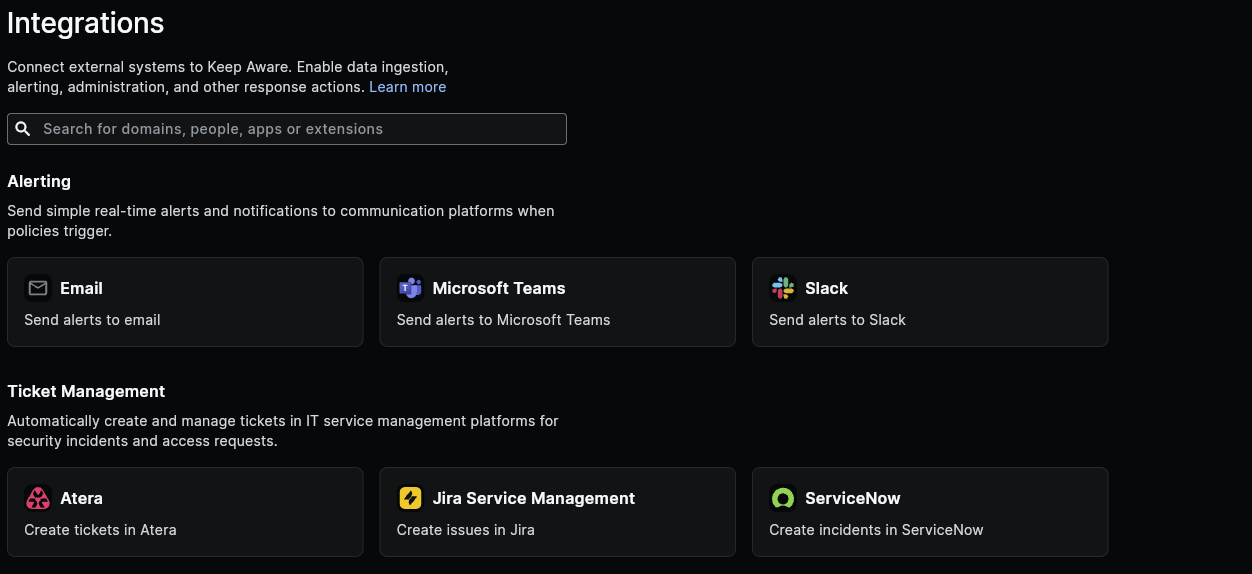 Image: Integrations Page
Here we will configure each of the fields below:
- Identifier: A unique name for your Email Alerts Integration.
- Email (To) Addresses: The email addresses that will receive the alerts.
- Email (CC) Addresse: The email addresses you want the alerts to be sent to, with a hidden copy.
- Subject: The subject line for your email alerts.
- Body: The content of your email alert. See below for information on custom alert messages in emails.
After you save the integration, that will complete the basic setup for getting Email Alerts connected to Keep Aware.
Continue below for how to customize the body that is sent in the email alerts.
Customize the Alert Sent via Email
All email alerts utilize wildcards and will be populated with values gathered from the Event or Threat that triggered this integration on a Policy.
To customize the email alert message, you can use HTML formatting in the body field. Here's an example body that utilizes wildcards:
{{short}}. This activity was flagged by the policy, {{policy.label}}

Type: {{type}}
User: {{user.label}}

Location/Hostname: {{location}}

Request Event:
<a href=https://console.awarefilter.com/explore/events?query=_id:%22{{id}}%22>Request for {{location_full}}</a>

Restriction Event:
<a href=https://console.awarefilter.com/explore/events?query=_id:%22{{session.prev_hit}}%22>Restricted {{type}} for {{location_full}}</a>

Lists: {{lists}}
Further details on all of the wildcard fields that may be used in the Body are available in our Searching documentation under Event and Threat Fields.
To send an email when a user submits an access request, see Create an exception workflow.
Frequently Asked Questions
| Question | Answer |
|---|---|
| How can I find out what Event and Threat fields can be forwarded in email alerts? | All available Threat and Event fields are described and documented in the Event and Threat Fields Documentation. |
| Is there a limit to the number of email recipients I can add? | There is no strict limit, but we recommend keeping the number of recipients manageable to ensure timely delivery and avoid potential spam filters. |