Managing Extensions
Profiles have the ability the ability to block or allow employees from using certain browser extensions, or even blocking the use of all extensions.
Getting Started
When creating or editing a Profile under the Profiles page on the console menu, select the Extensions tab to show all the extensions Keep Aware has seen across your environment. Checkboxes on this inventory can be used to remove or add extensions from a browser profile.
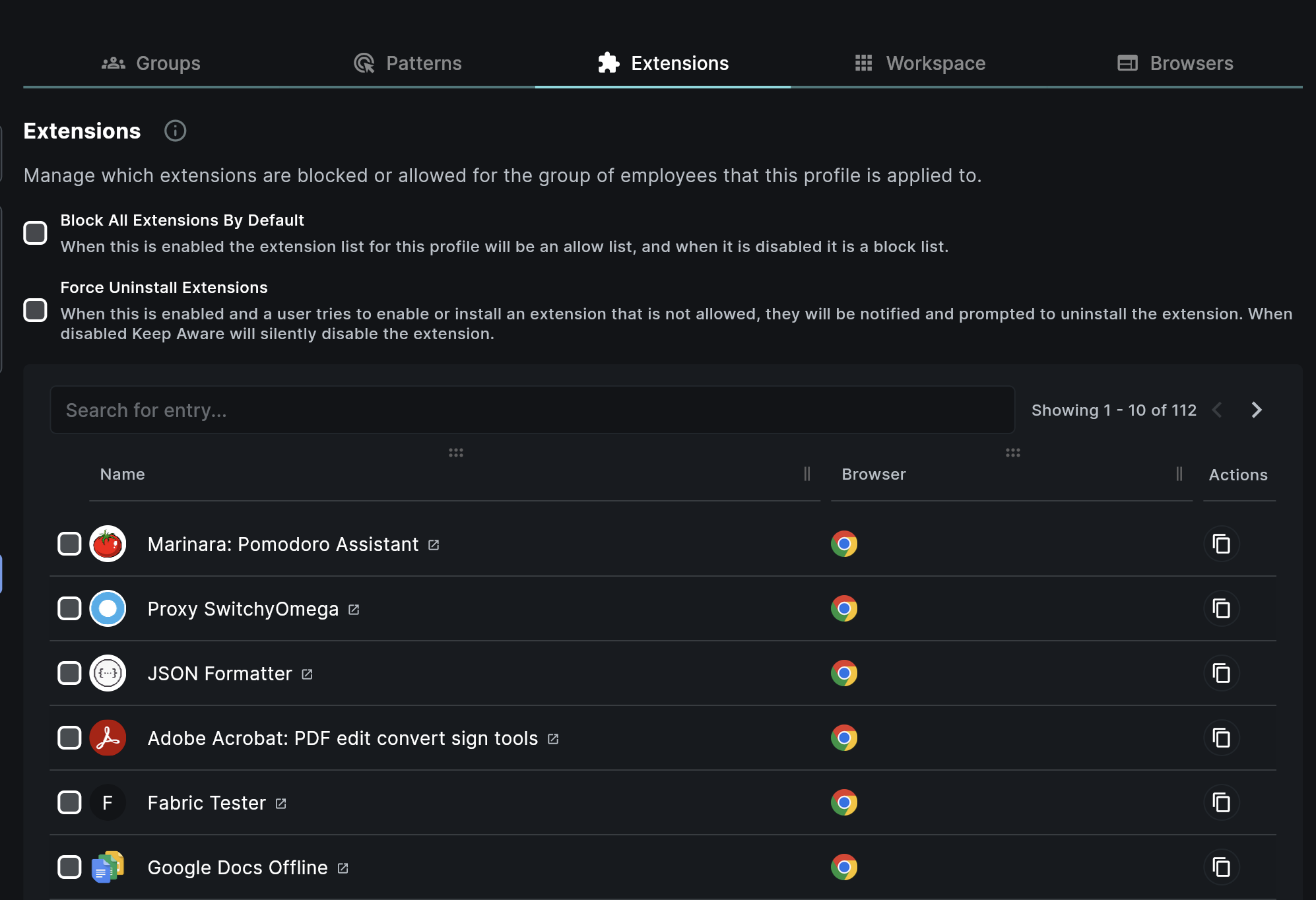 Image: Extensions in Profile
Block List vs. Allow List
To block all extensions and only allow employees to use certain extensions, check the Block All Extensions by Default setting above the extensions table. Now, the extensions that you select will be the only extensions that are allowed to be used.
Checking Block All Extensions by Default will retroactively disable all extensions existing on users and browsers that the profile is applied to. Any future extension will also be disabled. Be sure to select the extensions that employees use frequently that are acceptable to the organization.
If Block All Extensions by Default is left unchecked, the extension selection list becomes a block list and any selection will be blocked while all other existing extensions will be allowed.
Force Uninstall Extensions
There are 3 states that an extension can be in on a browser:
- (1) Enabled
- (2) Disabled and Installed
- (3) Uninstalled.
A disabled extension does not have any capabilities on a running browser, and it cannot turn itself back on. By default, Keep Aware will disable extensions on a profile's block list. This is because there will be no user interaction required, and end users won't be notified that the extension was disabled. Extensions can be force uninstalled through a simple interface sent to the user. To force a user to uninstall an extension, check the Force Uninstall Extensions setting from the Extensions tab.
When Force Uninstall Extensions is enabled and a user tries to enable or install an extension that is not allowed, they will be notified and prompted to uninstall the extension, as opposed to the extension being silently disabled on the browser.
| Extension State | Example |
|---|---|
| Disabled Extension | A disabled extension will show under the extensions page in the browser, but does not have permissions or access to any browser APIs. |
| Force Uninstalled Extension | An extension marked to be force uninstalled will present a customizable modal that supports custom branding to the employee. |
Enforcement Behavior and Limitations
Keep Aware enforces extension policy from inside the browser. Browsers do not expose a way for an in-browser tool to intercept or block an extension before it installs, so Keep Aware cannot prevent the installation itself — it must wait until the extension is installed to act. Enforcement is therefore reactive by necessity: when a user installs a blocked extension, Keep Aware disables it shortly after it appears — or prompts the user to uninstall it when Force Uninstall Extensions is on.
Browser Support
Enforcement depends on the extension APIs each browser exposes.
| Browser | Detect and disable blocked extensions | Force uninstall |
|---|---|---|
| Chrome, Edge, and other Chromium browsers | Yes | Yes |
| Firefox | Yes | Yes |
| Safari | Not supported | Not supported |
Safari extensions are distributed as native macOS apps rather than standard web extensions, so profile-based allow and block management does not apply to them. Manage Safari extensions through your MDM. See Extension management for current Safari scope.
Re-enabling Allowed Extensions
Moving an extension from blocked to allowed does not turn it back on automatically. A disabled extension stays disabled until the user re-enables it from the browser's extensions page, and a force-uninstalled extension must be reinstalled. After you allow a previously blocked extension, ask affected users to re-enable it.
When you turn on Block All Extensions By Default to switch the list from a block list to an allow list, an extension already on the list can take a few minutes to become usable. Until the change reaches the browser, re-enabling the extension may not hold, because it is briefly disabled again. After the change syncs, ask affected users to re-enable it.
When Changes Take Effect
Extension allow and block changes apply on the browser's next profile sync, not instantly. Active browsers usually pick up a saved change within a few minutes. It can take up to an hour for browsers that have been idle.
During testing, a browser continues to enforce its current policy until the next sync, so a change you just saved may not be reflected right away. A blocked extension can still appear active — or an allowed one still disabled — until that browser syncs.
To apply your latest changes immediately instead of waiting for the next sync, open the Keep Aware extension from your browser's toolbar and select the refresh icon next to Status on the My Workspace panel. This forces the browser to pull the latest policy right away, so you can re-test without waiting.
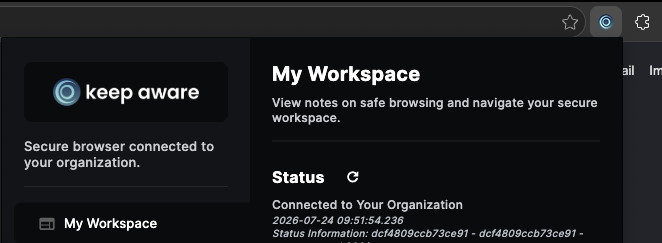
Image: Force a policy refresh from the Keep Aware extension
Manually Adding Extensions
If you would like to block or allow extensions that Keep Aware has not detected, you can add the extension by using the Add Extension Manually button at the bottom of the extensions table. This button will open a modal where you can input the id of an extension you would like to block or allow for this profile.
The id of an extension can usually be found in the url of the app store listing for the browser the extension is for.
For example, camnmdjjfkcplbdlofbndmkmnfeegjoi in the Chrome Webstore.
When you manually add an extension to a profile, you will only be able to view that extension in that profile. If you want that extension on another profile's extension list, you will need to add it manually again.
Frequently Asked Questions
| Question | Answer |
|---|---|
| What happens when an employee tries to use a blocked extension? | When an employee tries to enable or install an extension that is blocked on a profile they're in. They will be shown a notice that the extension is blocked and an option to uninstall the extension. If they decline to uninstall, the extension will be disabled in their browser, and if they try to re-enable the extension, they will be shown the same notice. If they select to uninstall the extension, Keep Aware will uninstall the extension for them. |
| Why was a blocked extension still installed on a browser? | Keep Aware enforces from inside the browser, so it disables a blocked extension shortly after it installs rather than preventing the install. |
| I moved an extension to the allow list, but it's still disabled. | Allowing an extension does not automatically re-enable it, and the change can take a few minutes to reach the browser. After it syncs, ask the user to re-enable it from their browser's extensions page, or reinstall it if it was uninstalled. |
| How long do extension changes take to apply? | Changes apply on the browser's next profile sync, not instantly. Active browsers usually apply a saved change within a few minutes, and it can take up to an hour for idle browsers. |
| Are Safari extensions supported for allow and block management? | Not through profiles. Safari extensions are native macOS apps, so manage them through your MDM. |