Creating a Manual Exception
A manual exception can be applied to any Policy to allow users to bypass certain blocks a safeguards. Manual exceptions can be set on specific users, browsers, or profiles of users. Exceptions can also have an expiration so that you can temporarily allow access to a particular site or activity.
Getting Started
To create a manual exception, navigate to the Policies page from the menu on the left side of your console. Exceptions can also be created from the Policies section of a specific Profile. By opening the Policy Editor for a specific policy, expand the Exceptions section.
Creating the Exception
Within the Exceptions section of the Policy Editor, you can create your first exception by clicking Create Exception.
After clicking Create Exception, you will be prompted for certain details about the exception. An exception has a duration to indicate how long the exception should last, a location which represents the domain or subdomain for the exception, and the users, browsers, devices, or profiles that receive the exception.
For example, to allow 24-hour upload access to Dropbox on the policy that's blocking this interaction, you could enter:
- Duration: 24 hours
- Location: dropbox.com
- For: Everyone
To apply this exception to certain groups of users, you can apply an exception to a Profile. This will allow the exception to apply to every user that has that Profile.
Once the exception details are filled out, click Save to create the exception.
Creating an Exception from a Threat
Exceptions can be created directly from a threat event. All threat events are viewable in from the Threats page from menu on the left side of your console. A threat event will contain the affected user, the location of the threat, and various response options. To respond to a threat with an exception, click the response option from the action bar.
From the response modal, check the Make exception action, and fill out the remaining details to create an exception. This will only create an exception for the specific location of the threat. In the example below, we are creating an exception for www.dropbox.com.
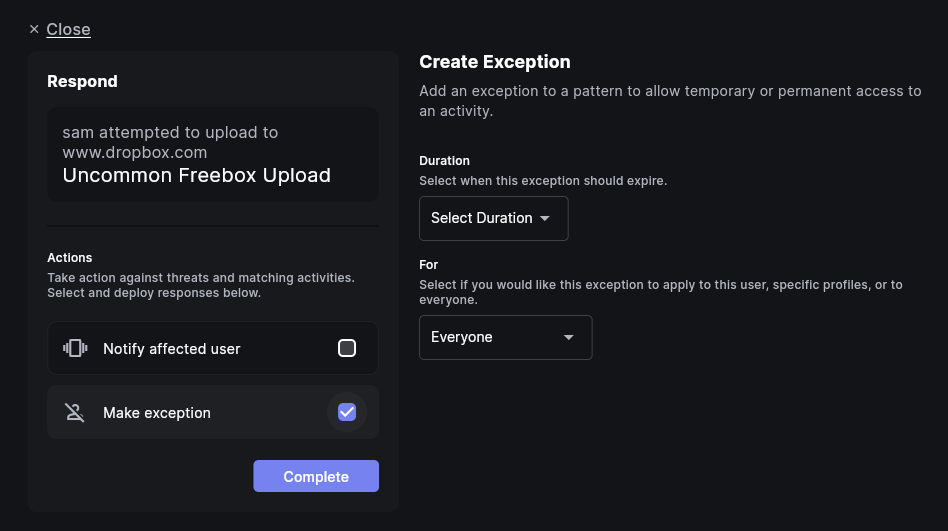
To start creating exceptions for threats, visit the Threats page in your console.
Creating a Exception from an Access Request
Similar to threats, exceptions can be made on events and safeguards that are not directly tied to a threat investigation. Certain policies in your environment will be marked to Restrict User from the activity. When a user clicks Request Access through a safeguard, a response icon will similarly show on the request event in question. To allow users to request access or request exceptions to a policy, ensure that "Request Access" is an enabled action button on your Safeguards.
Frequently Asked Questions
| Question | Answer |
|---|---|
| Can I apply an exception to a group of users? | Yes, exceptions can be applied to groups of users through a Profile. After creating a profile for a group, you can use the name of the profile in the exception. |
| Can I create an exception for all subdomains of a certain domain? | Yes, by default, if you make an exception for a domain, it will allow all subdomains. This is because every event is will check both its domain and subdomain to see if any exceptions exist. |