Shadow IT & Web Applications
Keep Aware maintains an inventory and reports on web application usage across your environment. Information on web app usage is useful for identifying shadow IT (e.g., a non-sanctioned ChatGPT account) and suspicious activities (e.g., file uploads to a personal Google Drive instance). Keep Aware also uses information from these web app interactions to calculate a Business Relevance Score (BRS).
Getting Started
View web applications and relevant metadata in the Catalog > Applications area. Sort by Business Relevance.
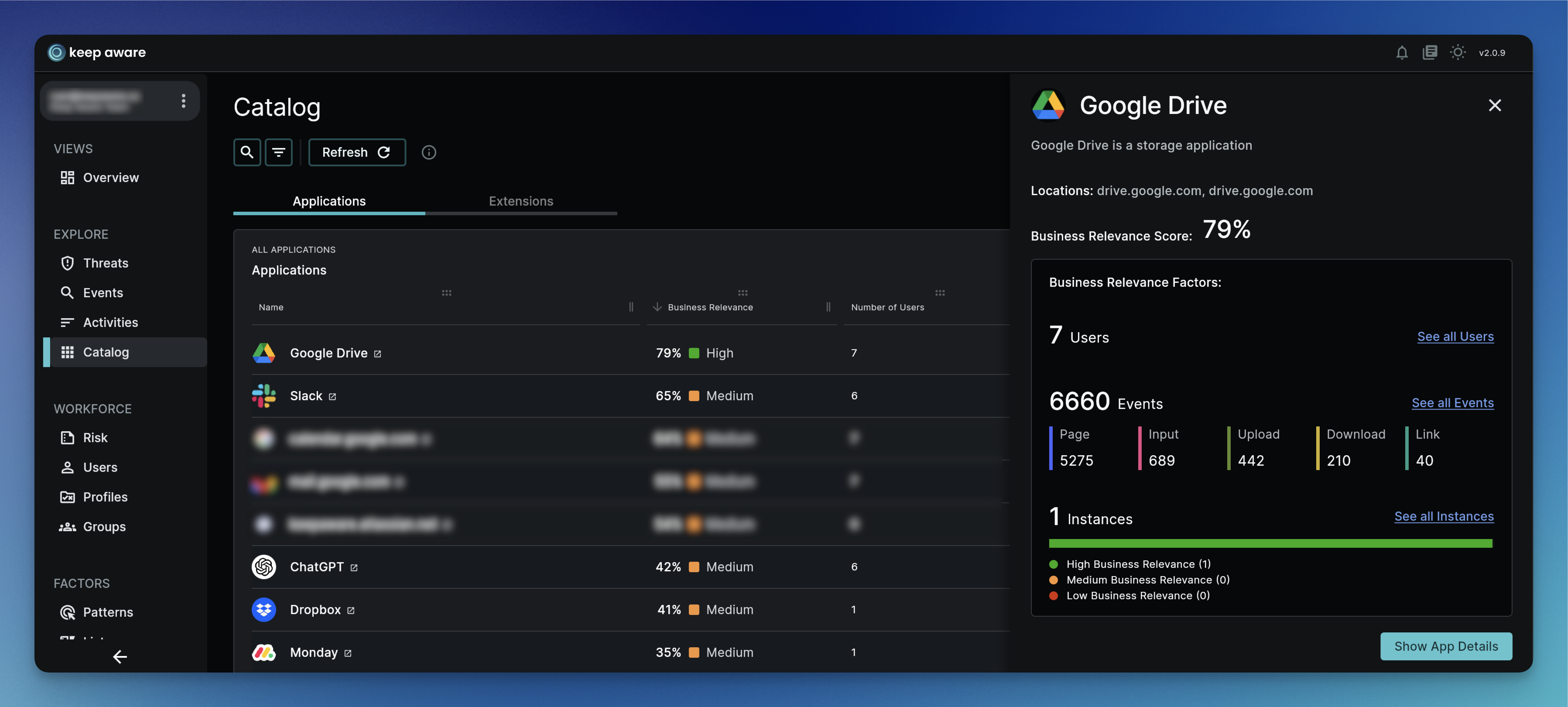 Image: Web Applications Catalog Side Bar
What is a Web Application?
A web application is software that is accessed via the browser and is comprised of multiple components:
- Web locations
- Users
- Web app user accounts
- Web app account instances
View information about a web application by traversing to the Catalog > Applications area, clicking on an application's name, which opens its side panel, and clicking a button to show details.
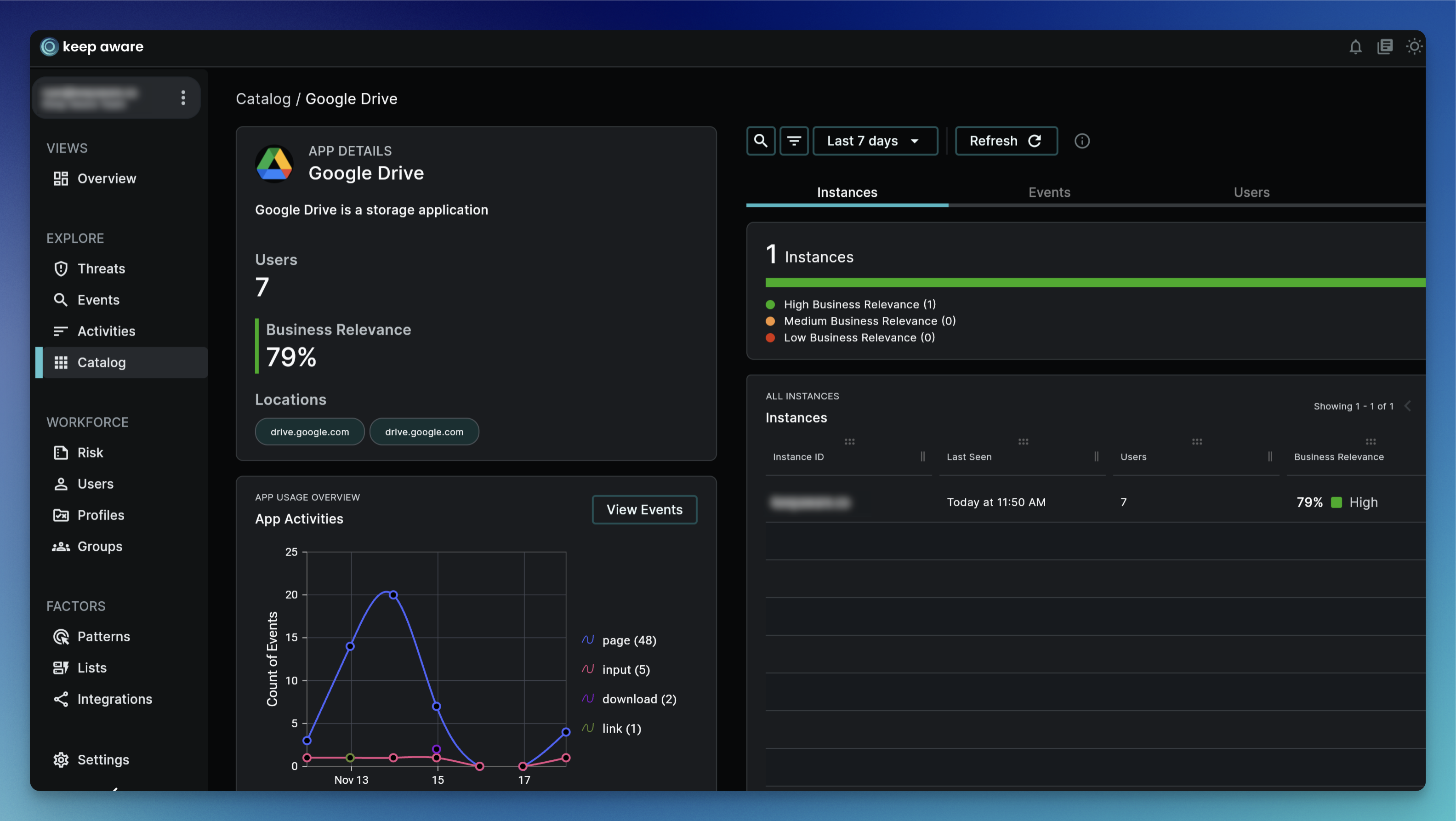 Image: Example Google Drive Web Application Details
Locations
A web application may have multiple web locations or FQDNs.
- Example: If an employee in your organization uses Dropbox, the Dropbox web application may have multiple locations, such as
www.dropbox.com,help.dropbox.com, anddropbox.com.
Users
A User is an employee tied to a Keep Aware browser extension. Each web application will have at least one user tied to it. A user is tied to an application when the user generates a browser activity event (e.g., a page visit) on a location for a web application (e.g., drive.google.com).
View the "Users" tab to view employees and their user account(s) for the selected application. More metadata and fields available for a User can be found in Asset Fields.
Accounts
A web application's user account is the user's account they logged into.
- Example: An employee,
jill@certaincyber.com, logged intodrive.google.com(Google Drive app). Jill's Google account, or web application user account, isjill31@gmail.com.
After a user logs into a web application, any subsequent browser activity event the user generates (e.g., a upload) on the web application will be logged with the user account information. A user account's information is gathered from either information in the DOM tree, background requests, and/or page location through Account Selectors.
View the "Users" tab to view employees and their user account(s) for the selected application. More metadata and fields available for an account can be found in Account Fields.
Account Instances
A web application's account instance is the instance the user is logged into.
- Example: An employee,
jill@certaincyber.com, logged into Jill's business account ondrive.google.com(Google Drive app). Jill's business Google instance is managed by Certain Cyber, so the instance ID iscertaincyber.com.
After a user logs into a web application, any subsequent browser activity event (e.g., a upload) on the web application will be logged with the account instance information. An account instance's information is gathered from either information in the DOM tree, background requests, and/or page location through Account Selectors.
View the "Instances" tab to view instances of the selected application. More metadata and fields available for an account instance can be found in Account Instance Fields.
Events Enriched with Account Fields
For individual browser activities (e.g., an upload) to a supported web application (e.g., Google Drive, on drive.google.com), the event is enriched with data about the web application user account, account instance, and the application itself.
For more information about these fields, refer to Application Account Fields.
Business Relevance Score (BRS)
The quantified relevance a web application likely has to your organization. The Business Relevance Score (BRS) is calculated using the above components of a web application (location, users, user account and instance information) and browser events.
Meaning of the Score
- The higher the BRS, the more relevant the application and its usage is to business operations.
- The lower the BRS, the more likely the web application is related to shadow IT.
- If no score exists, there was no information gathered for an account of a logged in user for that application.
- This situation could occur either due to a user using an application but is not logged in or due to the user using an application that is not currently supported.
Supported Applications
Keep Aware currently supports some common web applications (e.g., Google Drive) but continues to expand the number of supported applications.
A list of supported applications can be provided on request.
Finding the Score
The BRS is displayed in both the Catalog > Applications area and on individual browser events where a user was logged into a supported web application.
- Web Application Overall: View the BRS of an overall web app (e.g., Google Drive)in the Catalog > Applications area.
- Web Application Instance(s): View the BRS of each instance of a web app (e.g., all instances of the Google Drive application) in the Catalog > Applications area by clicking an application's name, selecting to see all instances in the side panel, and viewing the "Instances" tab.
- Web Application Event: View the BRS of each event of a web app (e.g., a
page visitevent on Google Drive) in the Catalog > Applications area by clicking the application's name, selecting to see all events in the side panel, and viewing the "Events" tab.- Alternatively, you may also view the BRS for an individual event wherever you are searching or viewing events in the Console, such as in the Events page.
- Use the Column Selector to ensure you can view the
account.brsfield.
Further Reading on Shadow IT
For an overarching documentation on managing Shadow IT—everything from the fundamentals and risks to common issues and the Keep Aware advantage—refer to Shadow IT Management.
Browser Extensions
---
Web Applications
---