HERE Core UI AI side panel (Experimental)
Experimental preview: HERE Core UI 44. Supertab windows and their APIs are subject to change without notice and are not recommended for production platforms.
The AI side panel is available only in a Supertab window. Enable Supertab windows in your platform configuration first, then integrate your own LLM chat UI. Your app receives context (readable content and/or screenshots) from other open tabs through window._aiContext.
You own how context is sent to your LLM. This integration only delivers context to your app in the side panel.
How it works
| Piece | Where it runs | Role |
|---|---|---|
ai-context preload | Your chat UI (AI side panel) | Injects window._aiContext with getContext() and setContextChangedListener() |
dom-sender preload | Tabs that supply context | Bridges page content and screenshots to the AI side panel |
Platform Provider hook (useAIContext) | Platform Provider | Controls which tabs can supply context |
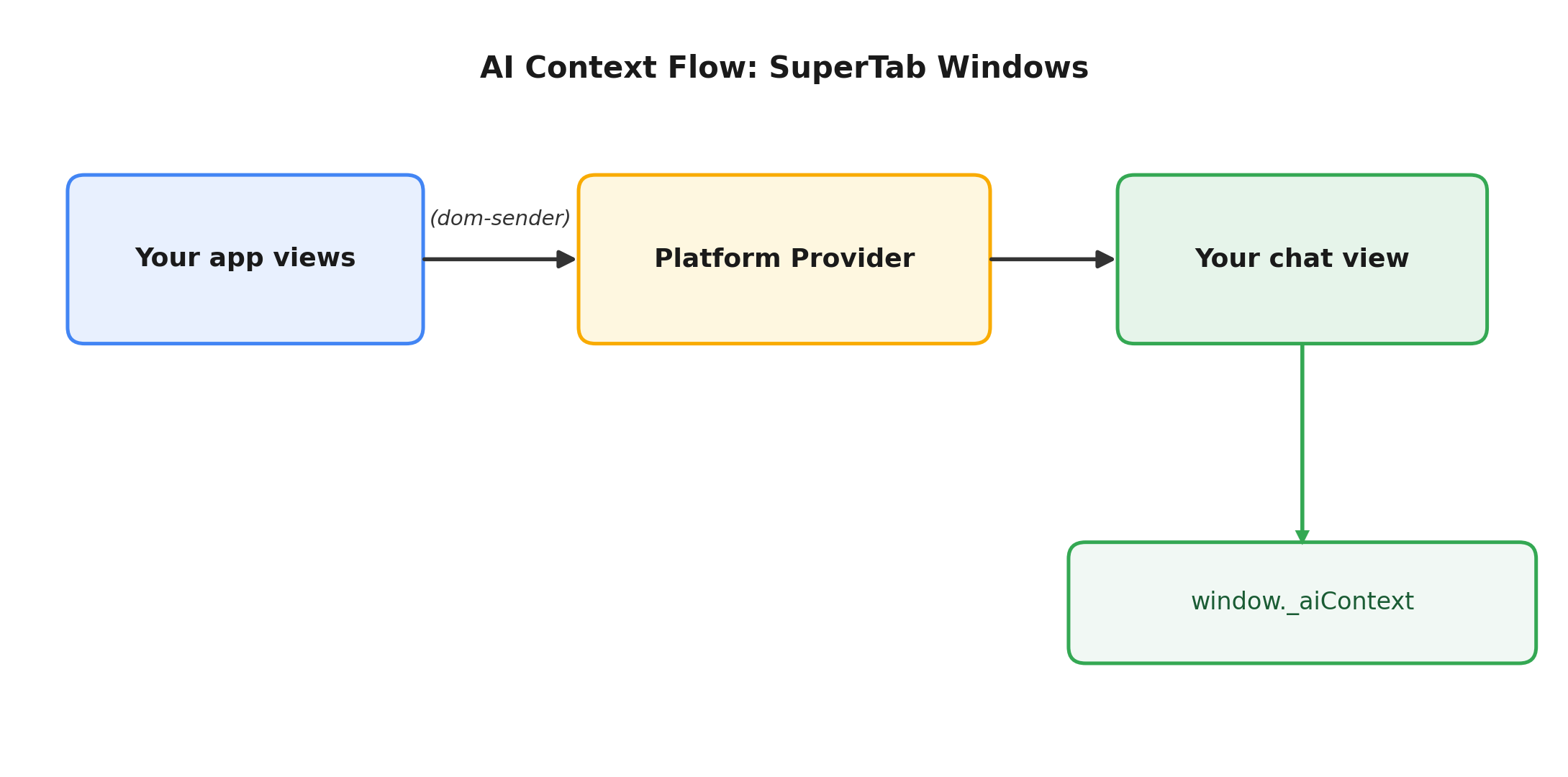
After you configure which tabs can share context, your chat UI reads that content by calling methods on window._aiContext. You do not implement scraping yourself.
Setup
Point the AI side panel at your chat UI
In WindowCreationOptions, set aiPanelOptions to your AI platform URL (the page rendered in the AI side panel).
Opt tabs into context sharing
Attach the dom-sender preload on each tab that should supply context. Opt-in is configured via domainSettings.
Read _aiContext in your chat UI
With the ai-context preload attached:
getContext(): returns current context on demand (for example, when the user submits a prompt).setContextChangedListener(callback): fires when context changes as the user navigates elsewhere in the app.
Illustrative code only. Contact HERE Support for more information
// chat-view front-end:
const results = await window._aiContext.getContext();

const messages = [
  { role: 'user', type: 'text', content: promptField.value },
  ...convertContextToUserMessages(results),
];

// ship to your LLM provider
streamText({ messages, prompt, provider, model /* ... */ });

window._aiContext.setContextChangedListener(({ pageMetadata, results }) => {
  const { title, icon } = pageMetadata;

  // opted-in tabs can still fail to scrape; check success flags
  const hasAnyContext = Object.values(results)
    .some((r) => r.readability?.success || r.screenshot?.success);

  contextualMetadataPanel.setState((prev) => ({
    ...prev,
    title,
    icon,
    results,
    contextButton: hasAnyContext ? 'enabled' : 'disabled',
  }));
});
results is keyed by tab. Each entry may include readability and/or screenshot, each with its own success flag. Always check success before using content.