HERE MCP intent tools
The intent tools let an agent raise FDC3 intents on the user's desktop.
| Tool | Purpose |
|---|---|
list-intent-handlers | Find the FDC3 intents available and the apps that handle them |
raise-intent | Raise an FDC3 intent in the user's running Enterprise Browser |
New to the MCP server? Start with the overview.
Without intents, when your agent identifies a relevant instrument, trade, or counterparty, it can only notify the user, who must then locate and open the appropriate app. Intent tools let your agent open the app directly.
What happens when you raise an intent
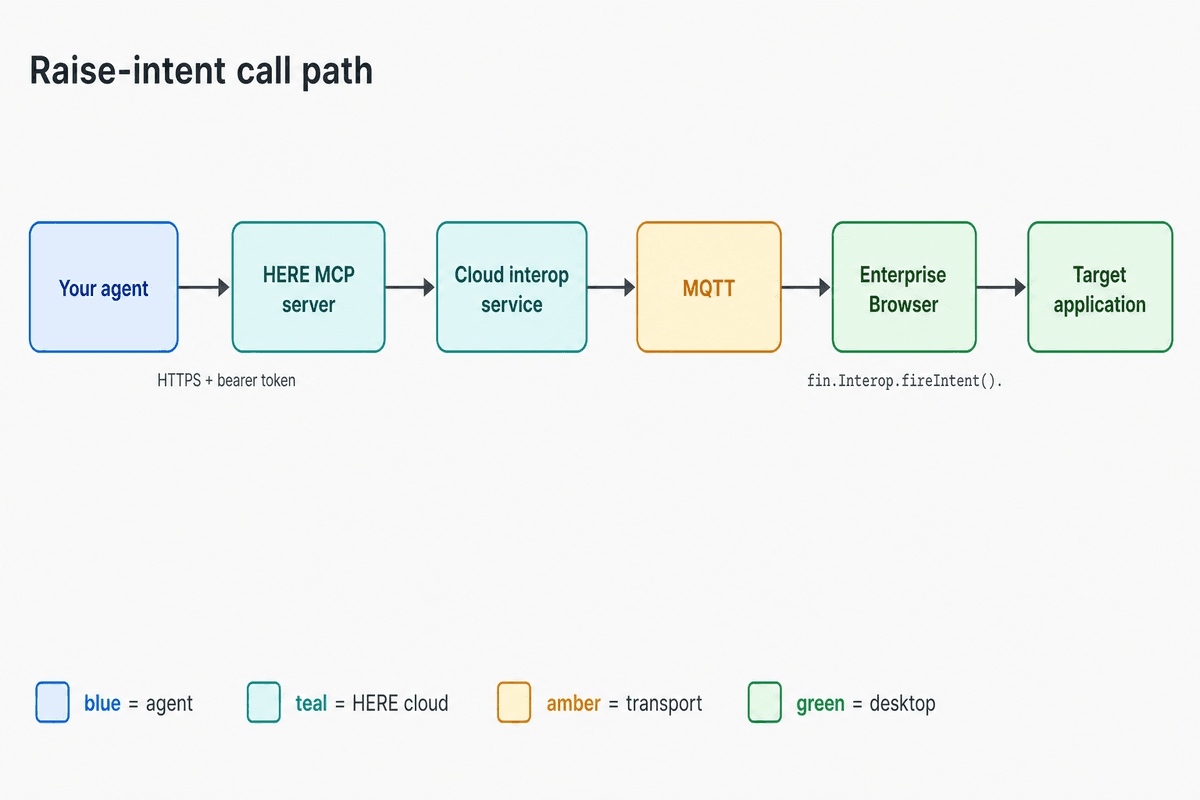
The call is synchronous. Your agent gets the outcome before the call returns, so it can accurately report the result to the user.
Security model
Every intent runs inside the authenticated user's Enterprise Browser (EB) session:
- Only apps in your HERE App Directory can be targets.
- Entitlements and access policies still apply. Your agent can't access an app the user doesn't have access to.
- Intents always go to the subject (
sub) of the bearer token. You can't send an intent to another user. - Every call is logged. See Auditing and analytics.
Prerequisites
cloudInteropis enabled for your HERE organization. HERE enables this organization-level feature flag for you.- You can connect to the MCP server. See Connecting for the endpoint and authentication. Then call
tools/listto check that the intent tools are available. - Apps declare their intents. Each app you want to target needs its intents listed in Interop Settings in the Admin Console (see Manage apps). If an app doesn't declare any intents,
list-intent-handlerswon't show it andraise-intentcan't reach it. - Enterprise Browser is running. Intents go to a live desktop session. If EB isn't running, the call times out. Nothing is queued or replayed.
list-intent-handlers
Lists the intents in your App Directory, grouped by intent and filtered to what the user can access.
Call this before raise-intent, either when your agent starts or as needed. Hard-coded intent names and app IDs break when an admin updates the App Directory.
Input
| Field | Type | Required | Description |
|---|---|---|---|
intent | string | No | Only return this intent, such as ViewChart |
contextType | string | No | Only return handlers that accept this FDC3 context type, such as fdc3.instrument |
Omit both fields to return all intents the user has access to.
Output
{
  "intents": [
    {
      "intentName": "ViewChart",
      "displayName": "View Chart",
      "apps": [
        {
          "appId": "chart-app",
          "appName": "Chart App",
          "contextTypes": ["fdc3.instrument"]
        }
      ]
    }
  ]
}
Example
const handlers = await mcp.call("list-intent-handlers", {
  intent: "ViewChart",
  contextType: "fdc3.instrument"
});
raise-intent
Raises an FDC3 intent on the user's desktop. HERE selects a registered app to handle it, opens or focuses that app, and passes your context so the app can populate its content.
Input
| Field | Type | Required | Description |
|---|---|---|---|
intentName | string | Yes | FDC3 intent name, such as ViewChart, ViewContact, or Allocate |
context | object | Yes | FDC3 context object. Must include a type field with a valid FDC3 context type |
targetApp | string | No | App ID of a specific handler. Omit this field to let HERE choose |
Output
| Field | Type | Description |
|---|---|---|
outcome | enum | resolved, chooser_shown, or error |
resolvedApp | string | App ID that received the intent, if known |
latencyMs | number | Time from when HERE received the call to when the intent resolved |
error | object | Included when outcome is error |
Example
const result = await mcp.call("raise-intent", {
  intentName: "ViewChart",
  context: { type: "fdc3.instrument", id: { ticker: "AAPL" } },
  targetApp: "chart-app"        // optional
});
// → { outcome: "resolved", resolvedApp: "chart-app", latencyMs: 312 }
Resolution behavior
Which app receives the intent depends on what you pass in and what's registered:
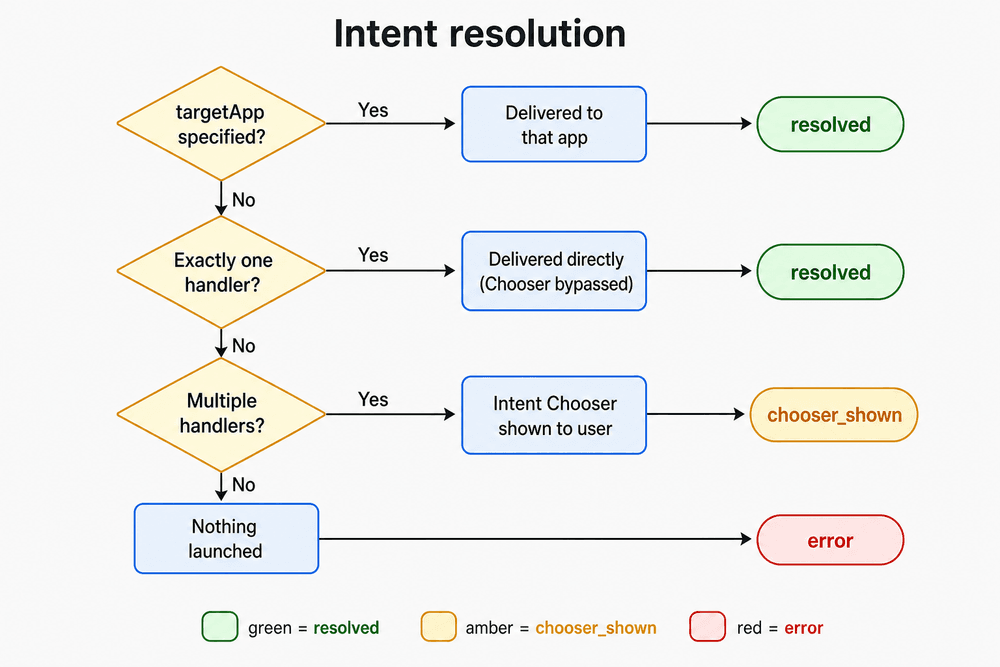
| Situation | What happens | outcome |
|---|---|---|
targetApp is set and handles the intent | The intent goes straight to that app | resolved |
No targetApp, and only one app handles the intent | The intent goes straight to that app, without the Intent Chooser | resolved |
No targetApp, and several apps handle the intent | The Intent Chooser opens so the user can pick | chooser_shown |
| No app handles the intent | Nothing opens | error |
HERE skips the Chooser intentionally when there's only one handler. You can't close the Chooser programmatically, so showing it for a single option would interrupt the user unnecessarily.
chooser_shown isn't a failure. It means the user needs to select an app. Have your agent tell the user a chooser is waiting instead of retrying.
Context objects
Your context must match the FDC3 context type the target app expects. A mismatch is the most common reason an app opens empty.
// Instrument
{ type: "fdc3.instrument", id: { ticker: "AAPL" } }

// Contact
{ type: "fdc3.contact", name: "Jane Doe", id: { email: "jane.doe@example.com" } }

// Trade
{ type: "fdc3.trade", id: { tradeId: "TRD-88213" } }
Check the contextTypes array from list-intent-handlers to see what a handler accepts before you raise an intent. For the full list of types, see the FDC3 context data specification.
Timeouts
The call waits up to 30 seconds for the desktop to respond, then returns an error. Most intents resolve in well under a second. The longer limit accommodates apps with slow startup times.
If your orchestrator has its own timeout, give it at least 30 seconds plus network latency.
Limits
- You receive the outcome, not the result. The response includes the outcome and the app ID. It doesn't include the FDC3
IntentResultfrom the app. - Current user only. Your agent can't raise an intent on someone else's desktop.
- Session selection isn't deterministic. If a user has more than one EB session running, HERE selects one, and which session it selects isn't guaranteed. Avoid flows that depend on a specific window or machine.
- No programmatic control of the Chooser. You can't pre-select an app in the Intent Chooser, close it, or check its state.
- Enterprise Browser apps only. Intents can't reach apps outside EB.
- Calls are synchronous. There's no async or streaming version. Each call stays open until the intent resolves or times out.
Error handling
When outcome is error, the response includes an error object. At a minimum, handle the following errors:
| Error | Cause | What your agent should do |
|---|---|---|
| No registered handler | No App Directory entry declares this intent, or the user can't access any that do | Don't retry. Call list-intent-handlers and offer what's available |
| Invalid context | context is malformed, or its type isn't one the handler accepts | Don't retry as is. Rebuild the context to match the handler's contextTypes |
| Unknown target app | targetApp doesn't handle this intent | Retry once without targetApp, or call list-intent-handlers again |
| Access denied | The user can't access the app, or a policy blocks the call | Don't retry. Tell the user the app isn't available to them |
| Timeout | The desktop didn't respond in time, usually because EB isn't running or the app is slow to start | Retry once at most, then ask the user to check that Enterprise Browser is running |
| Feature unavailable | cloudInterop isn't on for the organization | Don't retry. An admin must enable cloudInterop for the organization |
Build these two rules into your agent from the start:
Don't retry a validation error unchanged. A malformed context fails the same way every time. Correct the context or stop.
Rate-limit your agent. Your agent can raise intents faster than a user can manage the resulting windows. Limit calls per user session, and raise one intent per user request rather than opening apps speculatively.
Auditing and analytics
HERE logs every intent raised through MCP, whether it succeeds or fails. Each record includes the intent name, context type, requested target app, outcome, and latency, plus the agent and organization that made the call.
Keep the following in mind:
- Assume your client's compliance and IT teams can see every intent your agent raises. This visibility is what makes agent actions acceptable in production.
- Excessive or speculative calls appear in those logs, so design your agent accordingly.
Related tools
get-browser-context returns text and markdown from the user's open EB views, so your agent can work from what the user is looking at. It pairs well with intents: read the context to understand the user, then raise an intent to act on it.
send-notification sends the user a desktop notification. Use it when your agent needs to get the user's attention instead of opening an app.
App and supertab tools let an agent open apps and supertabs directly and work with color channels.
Reference
- HERE MCP server overview
- FDC3 2.0 specification: intents, context data, App Directory
- FDC3 context data types
- Model Context Protocol specification
- Manage apps: Interop Settings