Get started with notifications
The openfin-notifications package is deprecated starting with v2.0.0 of the package; the @openfin/workspace/notifications package is deprecated starting with v23.0. They are both replaced by the @openfin/notifications package.
When using the @openfin/notifications or the (deprecated)@openfin/workspace/notifications packages, Notification Center does not start automatically.
To use the notification center client API, you must first register your notification center platform, whether you use the HERE CDN or self-host.
For more information, see Register notifications.
Basic elements
A notification contains the following configurable areas:
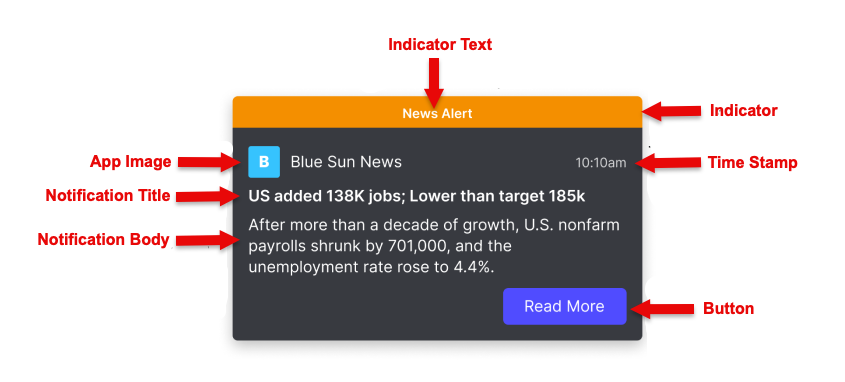
You work with the properties of the NotificationOptions object to create or update a notification:
-
Indicator: Optional banner to call attention to the rest of the notification. See Configure important notifications.
-
indicator.text -
indicator.color
-
-
Basic identifying information
-
icon: Optional image to help identify the application that sent the notification. -
date: Optional timestamp. If not specified, defaults to current date and time. -
title: Required title to introduce the notification.titleandbodyare the only required properties.
-
-
The main section, specified with a template. One of:
-
TemplateMarkdown, specified with thebodyproperty (can also beform): a string that can contain inline Markdown formatting. -
TemplateList, specified with thelistproperty: a list of string pairs. -
TemplateCustom, specified with thetemplateOptionsandtemplateDataproperties: a custom template and the data to populate it. For more information, see Work with custom notification templates.
-
-
Buttons: A row of buttons for the user to take action or dismiss the notification.
button: a list of ButtonOptions. For more information, see Buttons in a notification.
Interactive elements
You can add other elements, to help your users interact with the notification or to organize notifications in Notification Center. These elements include:
-
Forms. See Forms in notifications
-
Streams. See Streams of notifications
-
Reminders. See Notification reminders
-
Actionable fragments. See Work with actionable fragments
Toasts
By default, a notification appears as a transient "toast" on the desktop.
You can use the toast property to make it remain until acted on by the user or to appear only in Notification Center.
Sounds
In Notifications v2.4 or later, you can suppress the sound users hear when a notification arrives.
The soundOptions object includes the mode property, which you can set to 'silent' if you create your own custom sounds for notifications, for example.
Before you start creating notifications, you can call the getUserSettingStatus(UserSettings.SOUND_ENABLED) method to check whether a user has disabled sound in Notification Center.
You should also monitor the ToggleNotificationSound event to check whether a user has disabled sound at any point, so that you don't override user settings when you create notifications.
Shortcuts
Users show and hide Notification Center with a keyboard shortcut.
The default shortcut is Control+/.
This shortcut can conflict with commands in code editors and browser developer tools, such as toggling a comment in VS Code or Chrome DevTools.
If you self-host Notification Center, you can change the shortcut from your platform code in HERE Core UI Components 45.1 or later, and turn it off in HERE Core UI Components 45.2 or later, so that you don't need to walk individual users through changing it themselves.
Platform shortcut control works only with a Notification Center that you host on your own server. It is not available when you use Notification Center from the HERE CDN. See Host on your server.
What users can change
In Notifications v2.5 or later (HERE Core UI Components 17.2 or later), users can turn off the shortcut or specify their own shortcut keys in the Notification Center Advanced Settings panel.
Set the shortcut from your platform
Call these functions from the @openfin/notifications package:
| Function | What it does |
|---|---|
setDefaultPlatformShortcut | Sets the default shortcut for your platform. This can be set only once for a Notification Center instance. If it is already set, later calls are ignored and a console warning is logged. A shortcut the user sets in Advanced Settings, or that you set with setShortcut, takes precedence over this default. |
setShortcut | HERE Core UI Components 45.1 or later. Sets the shortcut as if it were changed in Advanced Settings. |
setShortcutEnabled | HERE Core UI Components 45.2 or later. Turns the shortcut on or off, as if the user selected or cleared Enable keyboard shortcut to open Notification Center in Advanced Settings. |
import { setShortcut, setShortcutEnabled } from "@openfin/notifications";

// Replace Control+/ with a shortcut that doesn't conflict with your users' tools
await setShortcut("CmdOrCtrl+Shift+N");

// Turn off the shortcut entirely
await setShortcutEnabled(false);

// Turn it back on; the shortcut is CmdOrCtrl+Shift+N, not Control+/
await setShortcutEnabled(true);
How platform and user settings interact
-
Changes take effect immediately, with no registry edits or restarts, and persist across restarts for that Notification Center instance.
-
setShortcutandsetShortcutEnabledchange the same settings that users see in Advanced Settings, so they override any changes the user made there. For example, if a user set their own shortcut and you callsetShortcut, your shortcut replaces theirs. The settings panel shows the new value, and the user can change it again afterward. -
setDefaultPlatformShortcutdoes not change a default that is already stored. To change the shortcut again, usesetShortcut. -
Turning off the shortcut keeps the configured keys. When you turn it back on, the shortcut most recently set with
setShortcutis restored, rather thanControl+/. -
Setting a shortcut while the shortcut is turned off does not turn it back on.
-
There is no event for changes users make in Advanced Settings, so your platform can't detect them. If your platform stores the shortcut or on/off value it last set, don't assume that value is still in effect, because the user might have changed it since.
-
Users are not notified when your platform changes the shortcut. The new value appears in Advanced Settings. Your platform is responsible for telling users about the change. For example, you can send users a notification that gives the new shortcut keys.
-
Control+/applies only until a user sets their own shortcut in Advanced Settings. If you don't call these functions, users who never changed the shortcut keepControl+/, and users who changed it keep their own shortcut.
Create a basic notification
-
Import the appropriate package, and register your notifications platform. See Register notifications.
-
Define and create the notification illustrated in the card image in this article:
const exampleNotification: BaseNotificationOptions ={// banner at the top of the notificationindicator:{color: 'orange',text: 'News Alert',},icon: 'https://EXAMPLE.COM/examples/notifications/company-B.png', //optionaltitle: 'US added 138K jobs; Lower than target 185K', // required// TemplateMarkdownbody: 'After more than a decade of growth, U.S. nonfarm payrolls shrunk by 701,000, and the unemployment rate rose to 4.4%...',// simple buttonbuttons:[{title: “Read More”,type: “button”,cta: true,// see main article on buttons for more complex actions you can invoke with a button// this is the simplest possible example, provides only an informational linkonClick:{window.open("https://EXAMPLE.COM/news/employment”, "_blank")}}]// optional, disable to support custom soundssoundOptions:{mode: 'silent'}};create(exampleNotification);