Home overview
The Home component of HERE Core UI Components provides a text box interface for users to enter supported commands or search for content you provide as part of your implementation.
How it works
To make content or applications available, you register a Home provider that you implement. If multiple providers are registered with Home, their entries are shown in the Home toolbar.
The HomeProvider interface extends the CLIProvider interface. In the current version of HERE Core UI Components, these interfaces are identical, and some examples use CLIProvider, while others use HomeProvider. A best practice is to work with HomeProvider to make sure your HERE Core UI implementation is compatible with future versions.
A HomeProvider can do the following:
- Integrate with Home.
- Return customizable search results to Home, which can include suggested searches and filtering options.
- Starting in HERE Core UI Components 8, configure search results to be returned asynchronously, to improve performance. For more information, see Provide asynchronous search results.
- Set a logo icon to be displayed when the provider is selected.
- Starting in HERE Core UI Components 10, support complex search query strings programmatically with a new API. See Support complex search queries programmatically for details.
Starting in HERE Core UI Components 9, the Home UI is hidden by default on startup. To show Home by default instead, call the
Home.show()method when you register your provider. See Create your provider in this article.
Get started
The basic steps are the following:
-
Implement the
HomeProviderinterface (orCLIProvider). -
Register your provider with the HomeApi.
Prerequisites
- Node
- npm
Install and import
-
Install the Workspace npm package:
npm i -E @openfin/workspace -
Import the Workspace package:
import {
    Home,
    type App,
    type HomeProvider,
    type HomeDispatchedSearchResult,
    type HomeSearchListenerRequest,
    type HomeSearchListenerResponse,
    type HomeSearchResponse,
} from "@openfin/workspace";
Create a Home provider
-
Define and register your HomeProvider object:
const homeProvider: HomeProvider = {
    id: "PROVIDER-UNIQUE-ID",
    title: "USER FRIENDLY PROVIDER TITLE",
    icon: "URL-TO-FAVICON",
    onUserInput: onUserInput,
    onResultDispatch: onResultDispatch,
};

await Home.register(homeProvider);
// override default, which is to hide on startup
await Home.show();
The
onUserInputproperty points to a function that is called when the user enters a search term. TheonResultDispatchpoints to a function that is called when the user selects a search result. -
Create the onUserInput function. This could be as simple as the following example, or it can be a query builder app, for example, that takes advantage of the new
setQueryStringfunction in HERE Core UI Components v10.async function onUserInput(
request: HomeSearchListenerRequest,
response: HomeSearchListenerResponse
): Promise<HomeSearchResponse> {
let queryLower = "";
if (request.query && typeof request.query === "string") {
queryLower = request.query.toLowerCase();
}
// If the query starts with a / treat this as a help request
// so we don't have any additional entries to show
if (queryLower.startsWith("/")) {
return { results: [] };
}
return getResults(queryLower);
} -
Create the onResultDispatch function:
async function onResultDispatch(result: HomeDispatchedSearchResult): Promise<void> {
    if (result.data !== undefined) {
        await launchApp(result.data as App);
    } else {
        console.warn("Unable to execute result without data being passed");
    }
}
Complete example
Refer to the Starter example for basic Home registration for a complete example of setting up a Home Provider.
Specifically, the home.ts file contains the code snippets shown here.
Customize branding
Starting in Here CORE UI Components version 43, you can customize the icons and text in the Home search window to provide branding for your platform.
Do this by specifying properties when creating the Home provider.
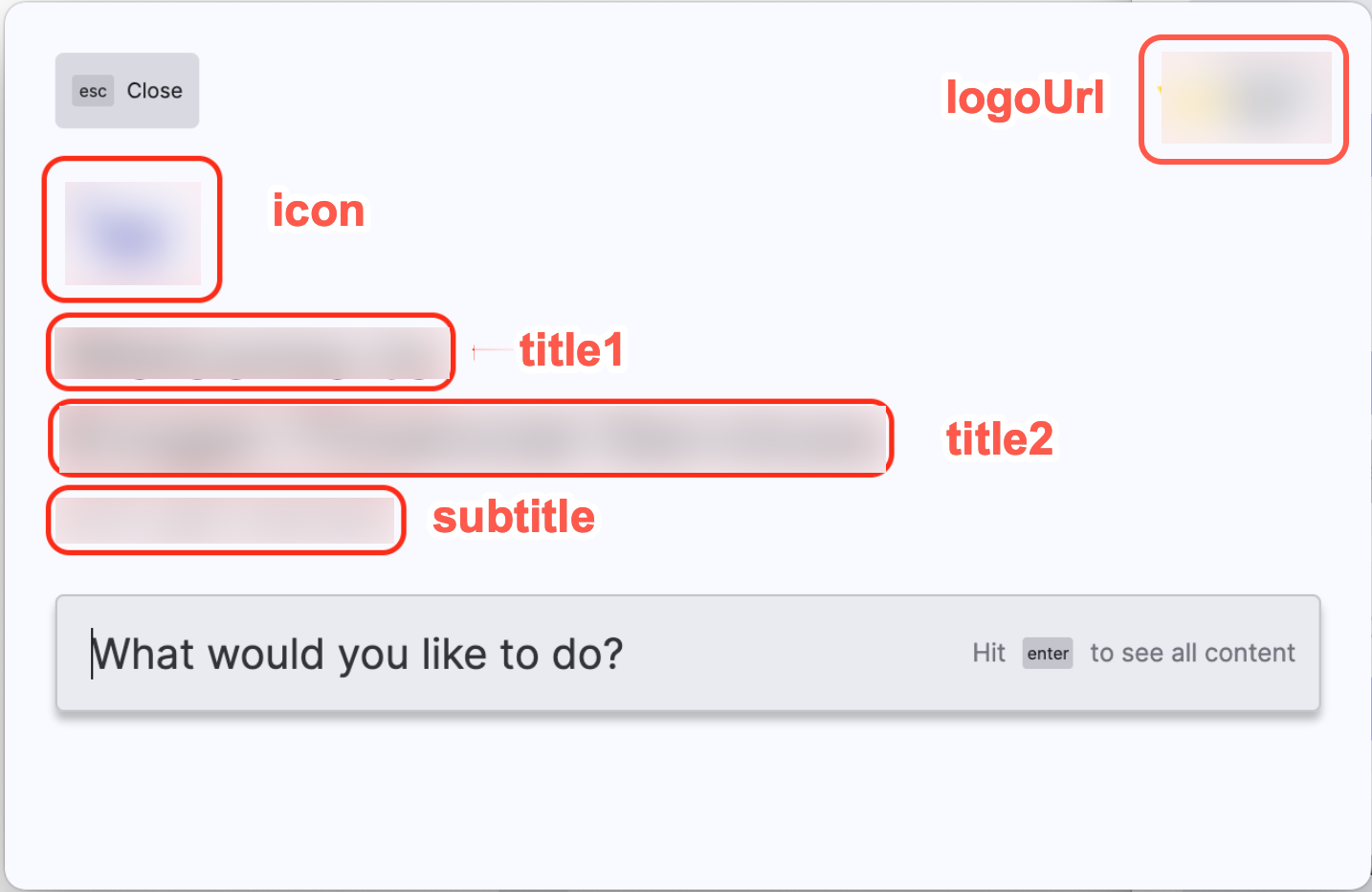
logoUrl: URL of an image in the upper right corner of the windowsubHeader: Properties for optionalicon: URL of an image on the left above the titletitle1: First line of title texttitle2: Second line of title textsubtitle: Line of subtitle text
const homeProvider: HomeProvider = {
    id: "PROVIDER-UNIQUE-ID",
    title: "USER FRIENDLY PROVIDER TITLE",
    icon: "URL-TO-FAVICON",
    logoUrl: "URL-TO-LOGO-FILE",
    subHeader: {
        title1: "FIRST LINE OF TITLE",
        title2: "SECOND LINE OF TITLE",
        subtitle: "SUBTITLE TEXT",
        icon: "URL-TO-SUBHEADER-ICON"
    }
    onUserInput: onUserInput,
    onResultDispatch: onResultDispatch,
};